¶ Prerequisite/Requirement
- Integrated Teams in VOCPhone Marketplace. https://portal.vocphone.com/?p=marketplace
- You have to be an admin Microsoft account.
- You should have at least 1 user subscribed to “Microsoft Teams Phone Standard” License. You can purchase license at https://admin.microsoft.com/Adminportal/Home#/catalog (NOTE: 1 license is for 1 user). To create a user, go to https://admin.cloud.microsoft and go to Users > Active users and select Add a user.
- Domain Name Access to create a DNS CNAME entry to create "vocphone-teams.yourdomain.com.au" to point to "teams.vocphone.com"
¶ Setup
¶ Teams Admin Interface
¶ Direct Routing
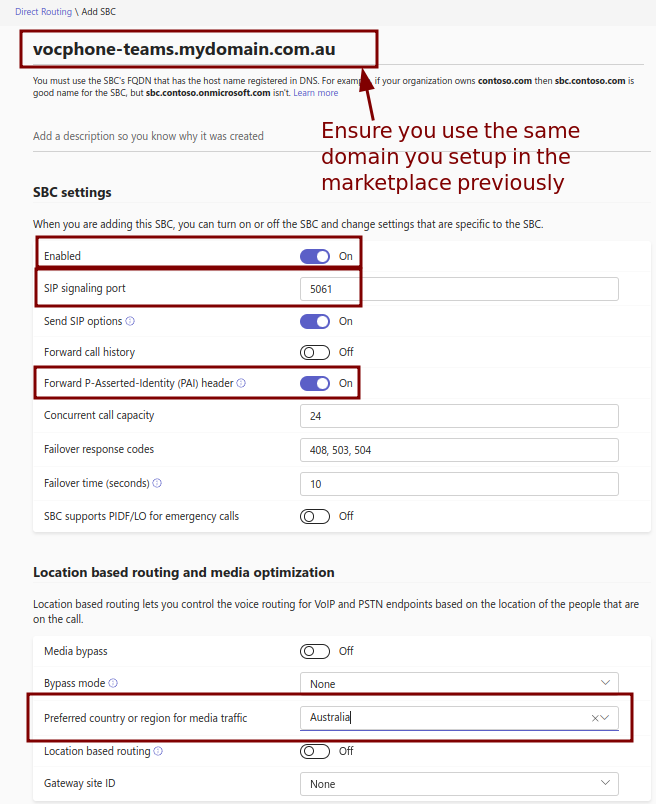
To Setup Direct Routing, head over to team's admin centre by clicking this link Dashboard - Microsoft Teams admin center. And go to Voice > Direct Routing > SBCs and click add. Adjust the details as highlighted below, once done, click save.
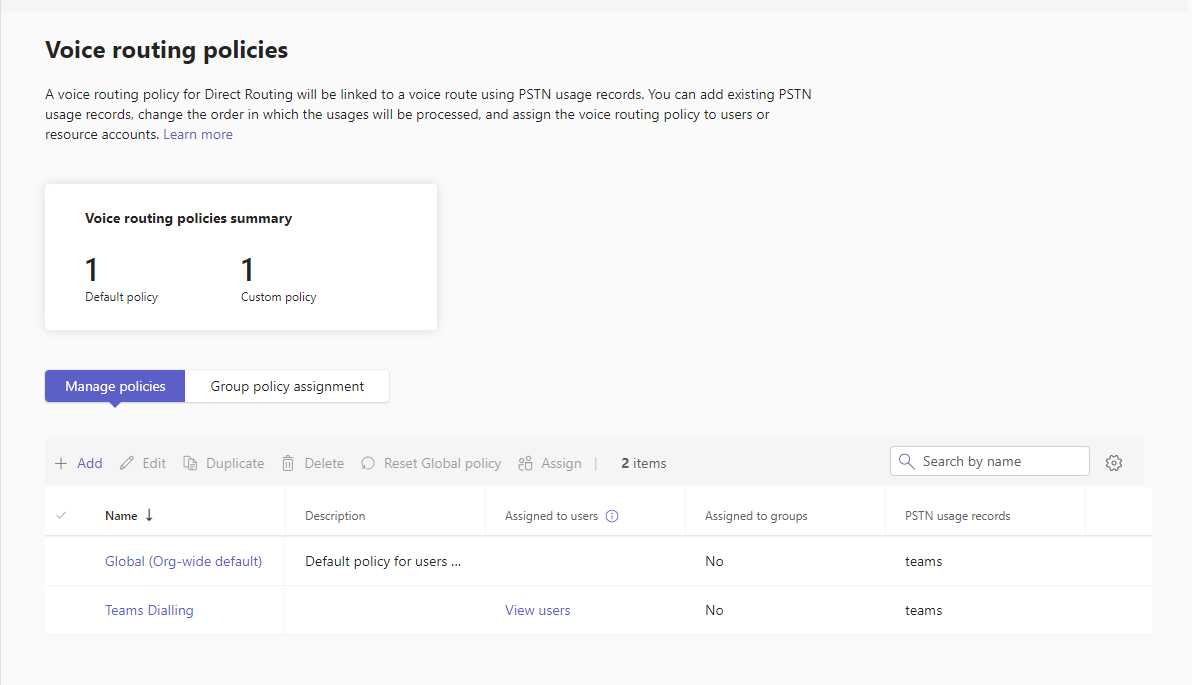
Create a voice routing policies if have not yet created one by going to Voice > Voice Routing Policies. In this example we will create Teams Dialling voice routing policy.
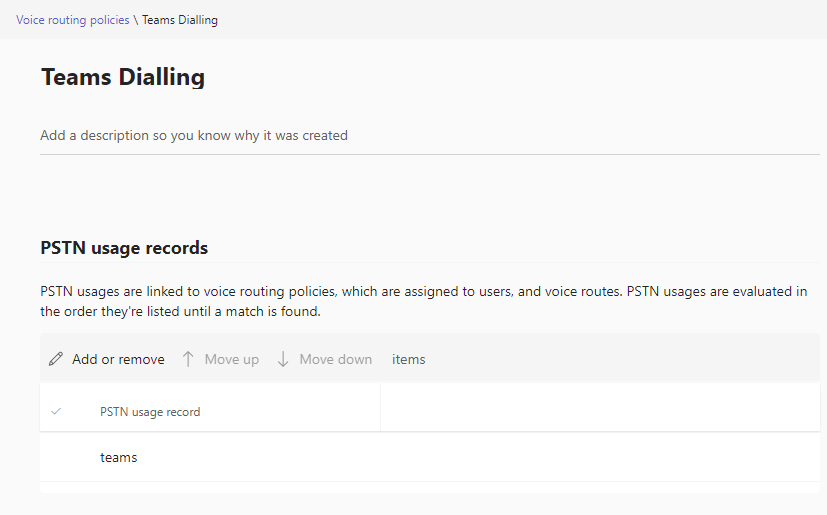
Click add, to create a new voice routing policy. Set the name to “Teams Dialling” and under PSTN usage records add “teams”.
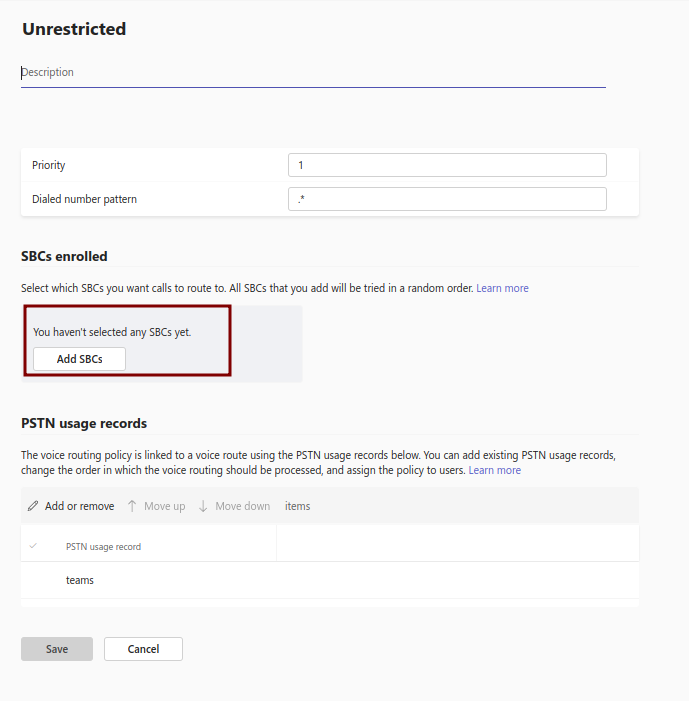
Next add a Voice Routes. Go to Voice > Direct Routing > Voice Routes and click add. Set the Priority to 2, and the dialled number pattern to .* . Under SBCs enrolled, select the SBC you created. Under PSTN usage records use the PSTN usage records you just created.
¶ Assigning Setting to Users
To assign the setting/policies to users, go to Users > Manage Users or go Manage users - Microsoft Teams admin center .
Edit General information by selecting the user you want to edit, and under Account click edit beside General information.
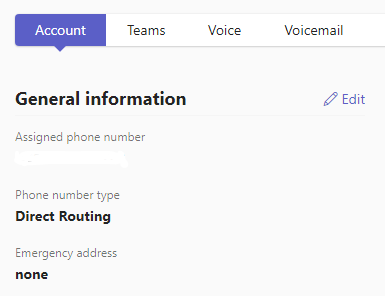
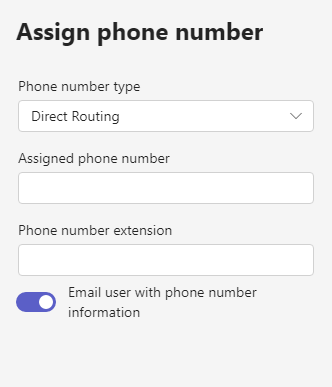
Update the following details:
- Phone number type: Direct Routing
- Assigned phone number: [allocated phone number in international format ex. 61272515260]
- Phone number extension: leave it blank.
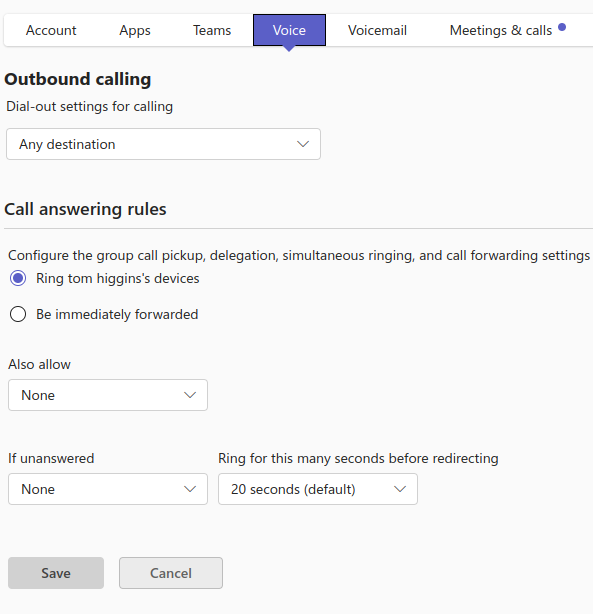
Next go to** Voice** and follow the setting just the image bellow and click Save.
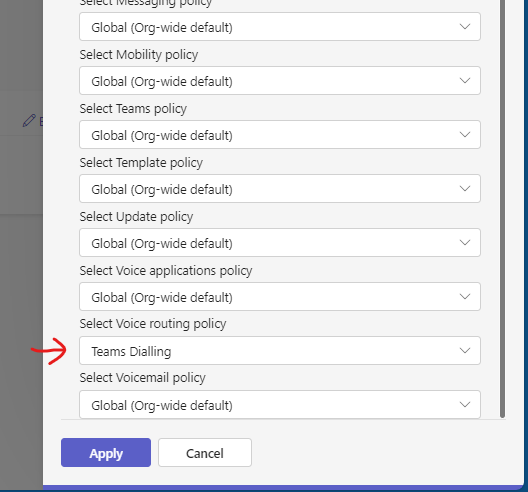
Set the voice policy routing for the user. By going to Policies and click the edit button just besides the view button. Update only Select Voice routing policy by choosing the routing policy you created, for this example the policy is Unrestricted.
Once this is all setup, it takes Microsoft up to 2 hours to bring the Direct Routing SBC to active.
Once the SBC is active, please go back to the Voice Over Cloud Portal > Marketplace > Teams Integration > Manage. Confirm that your Direct Routing SBC is active and then you assign Users to the Teams Integration.