¶ Pipedrive Integration Users Guide
Integrate Pipedrive to VOCPhone
Step 1:
Login to the VOC Customer Portal.
Step 2:
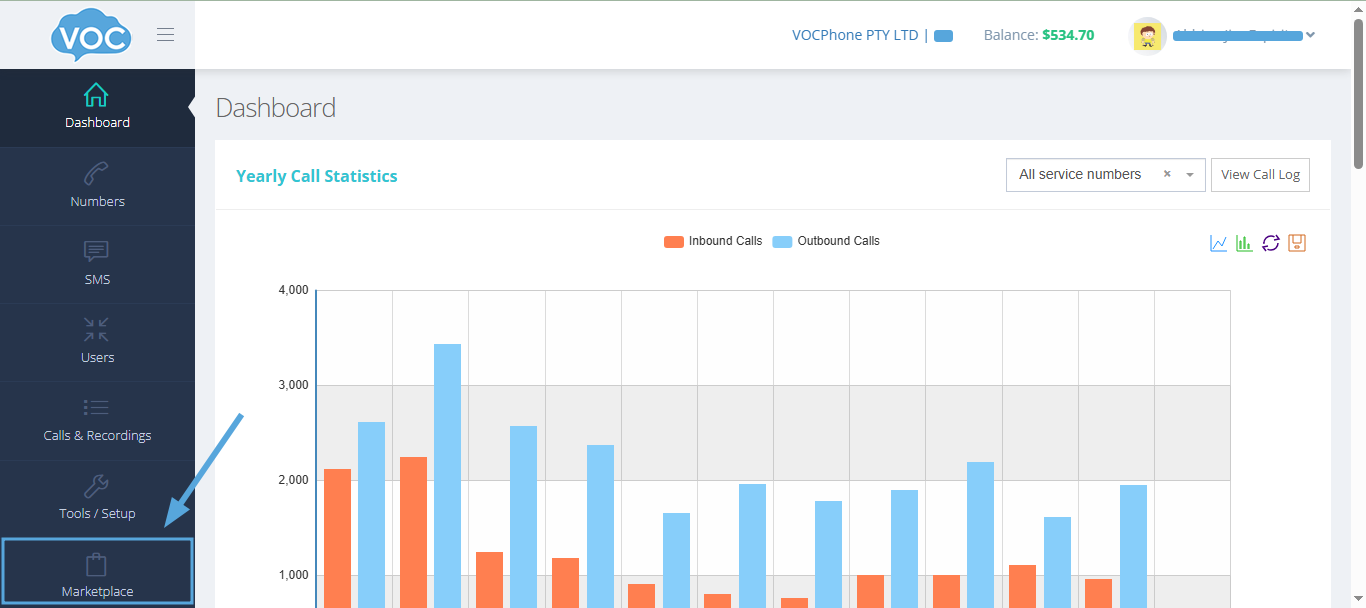
At the left menu pane, Go to Marketplace.
Step 3:
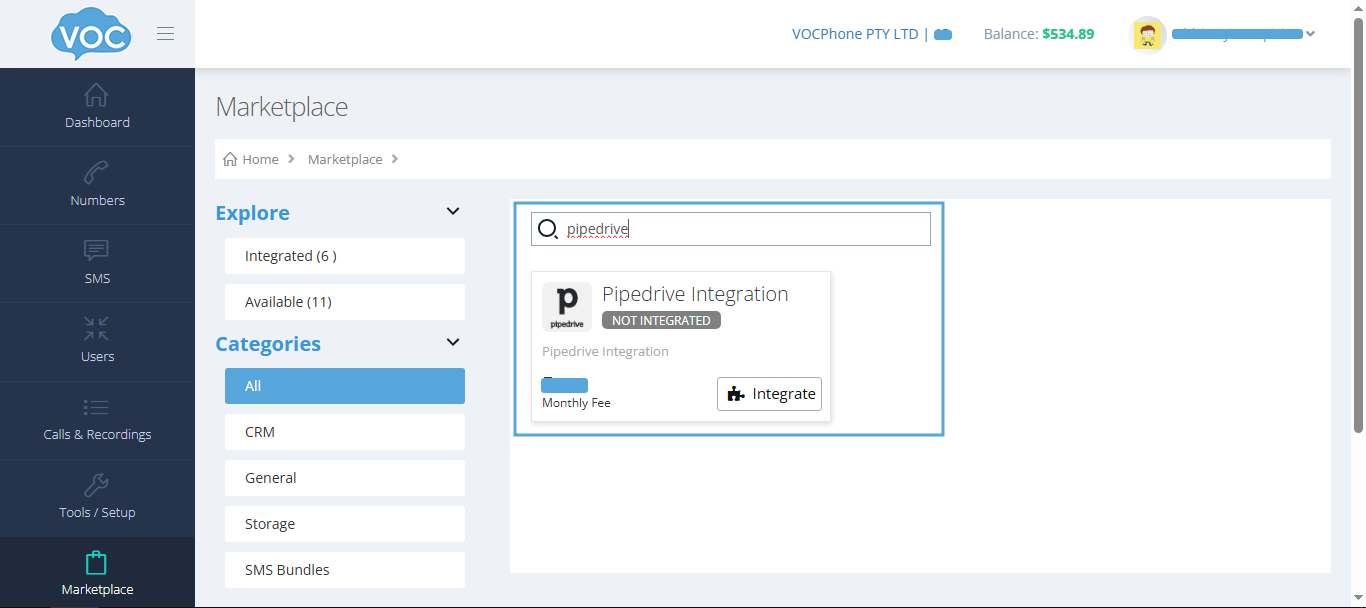
Search for Pipedrive, then click Integrate. (Note: you will be charged for the integration)
Step 4:
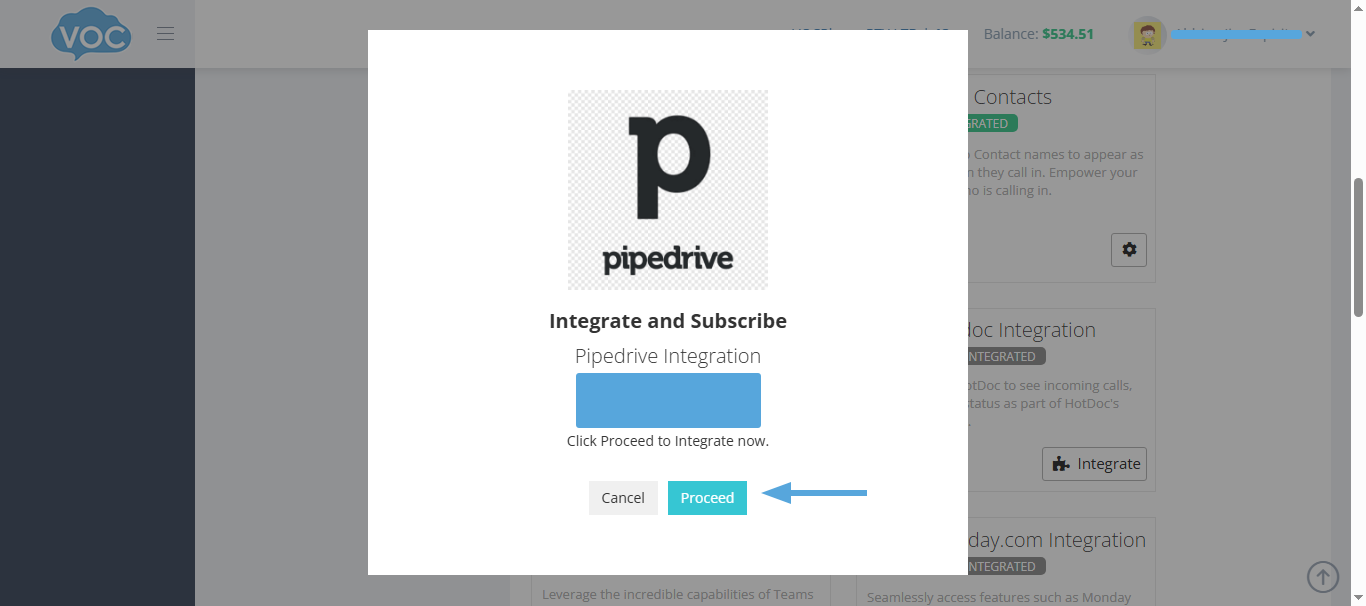
A window will be shown for charge details/payment confirmation, click Proceed button.
Step 5:
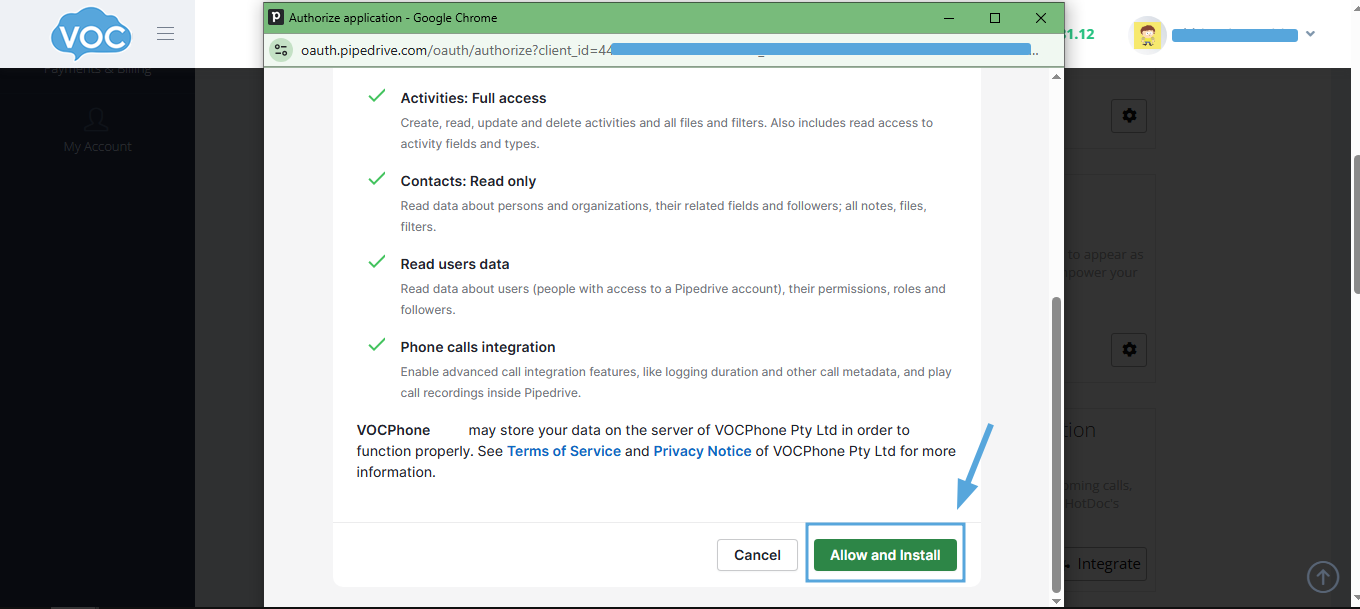
A new window will be shown to login your Pipedrive account and it will display the permissions needed to integrate Pipedrive into your VOC account, click Allow and Install.
¶ VOCPhone Dialer(Click to Call) Setup
Before you can use the dialer or the Click to Call feature from VOCPhone, you will need to assign which VOC User/Extension will be used by your Pipedrive user to call your customers.
Step 1:
Login to the VOC Customer Portal.
Step 2:
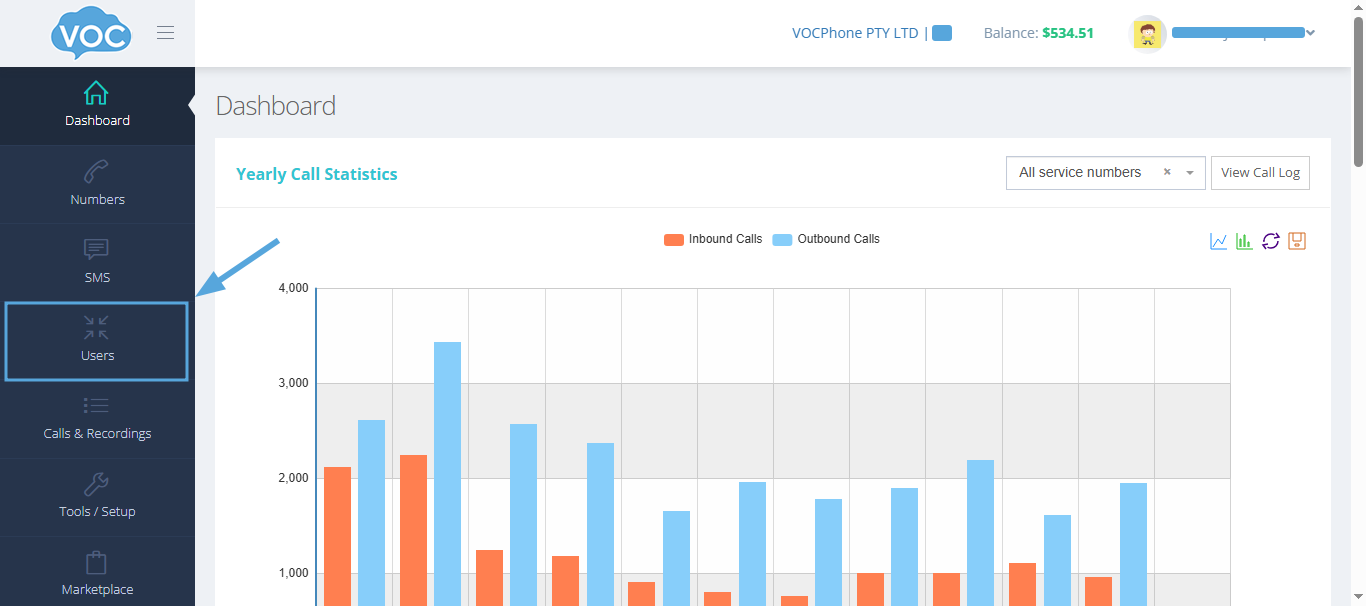
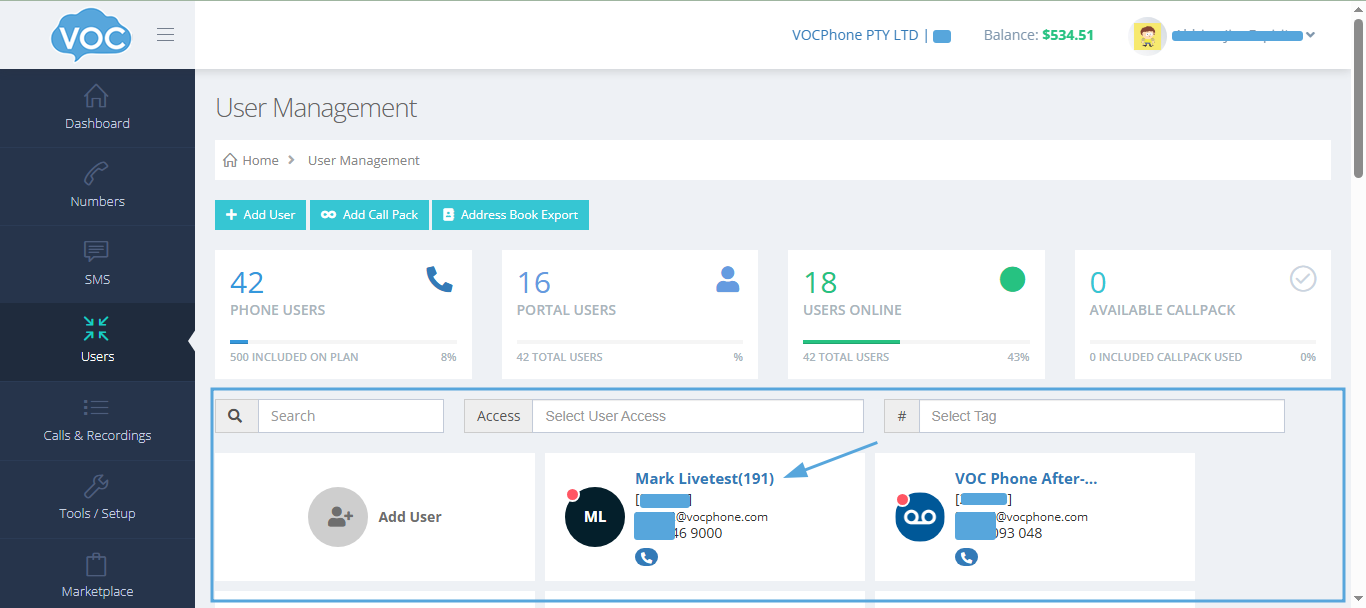
At the left menu, Go to Users and Choose a VOC user you want to use with your Pipedrive user then click it.
Step 3:
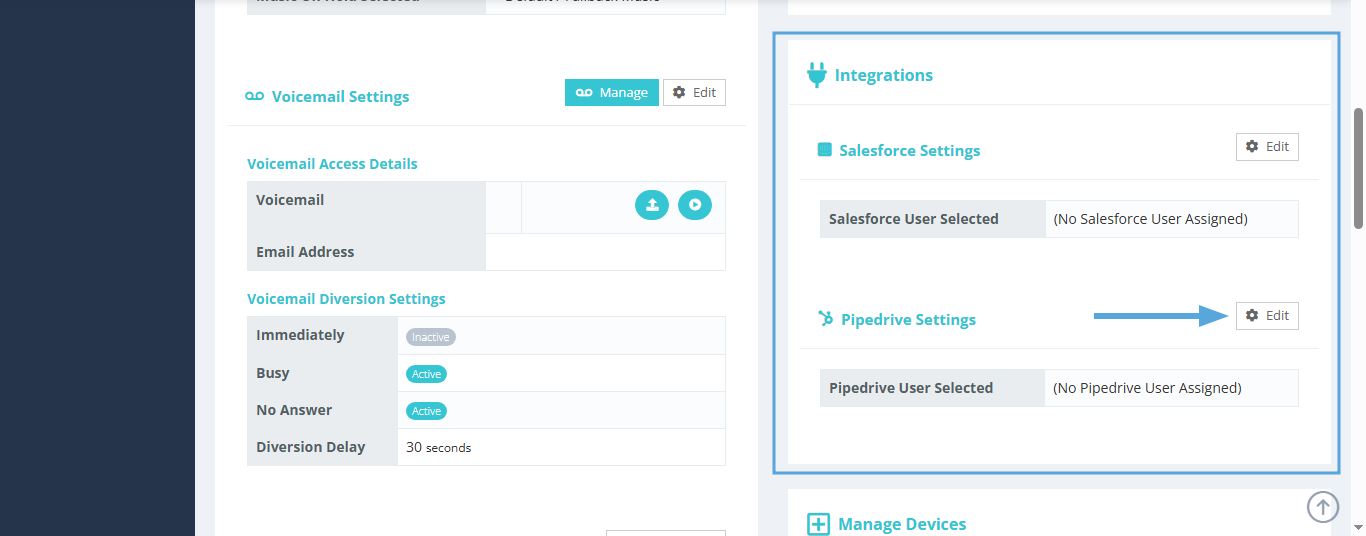
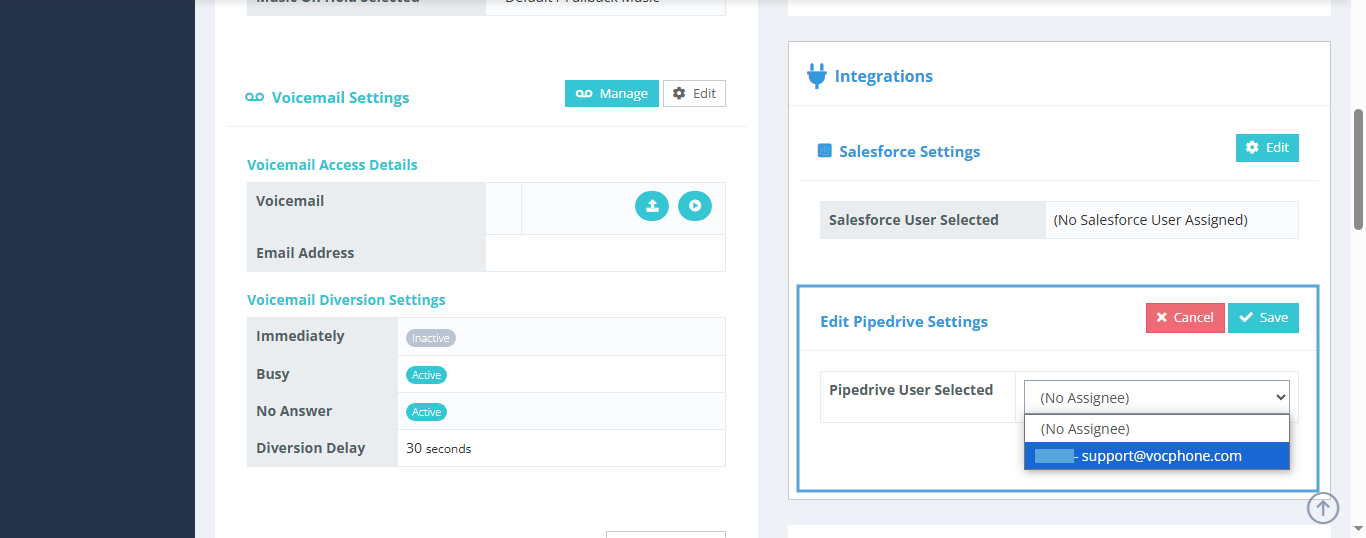
Under the Integrations panel look for Pipedrive Settings and click Edit button.
Step 4:
Choose your Pipedrive user from the dropdown, the click Save.
¶ VOCPhone SMS Setup
VOCPhone SMS panel in Pipedrive lets you send SMS message to your customers within the Pipedrive User interface. Before you can use it, you have to include the VOC user to a mobile number - where you assigned your Pipedrive user, from the Click to Call setup.
Step 1:
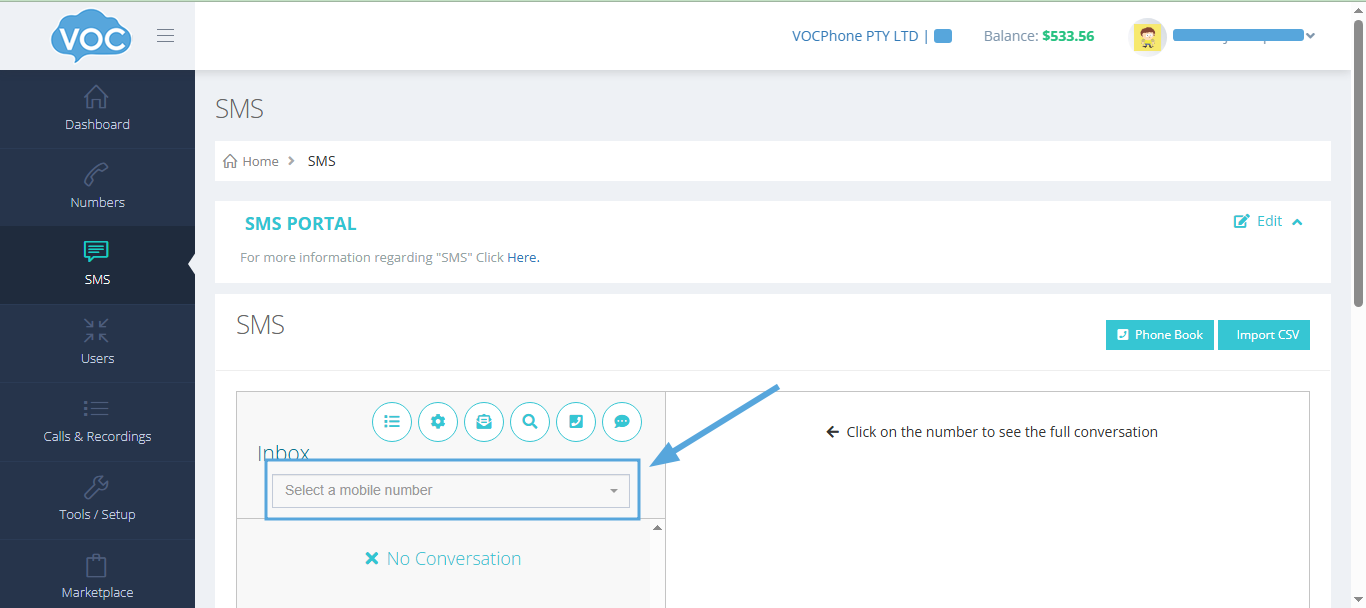
In your VOC Customer Portal, Go to SMS page.
Step 2:
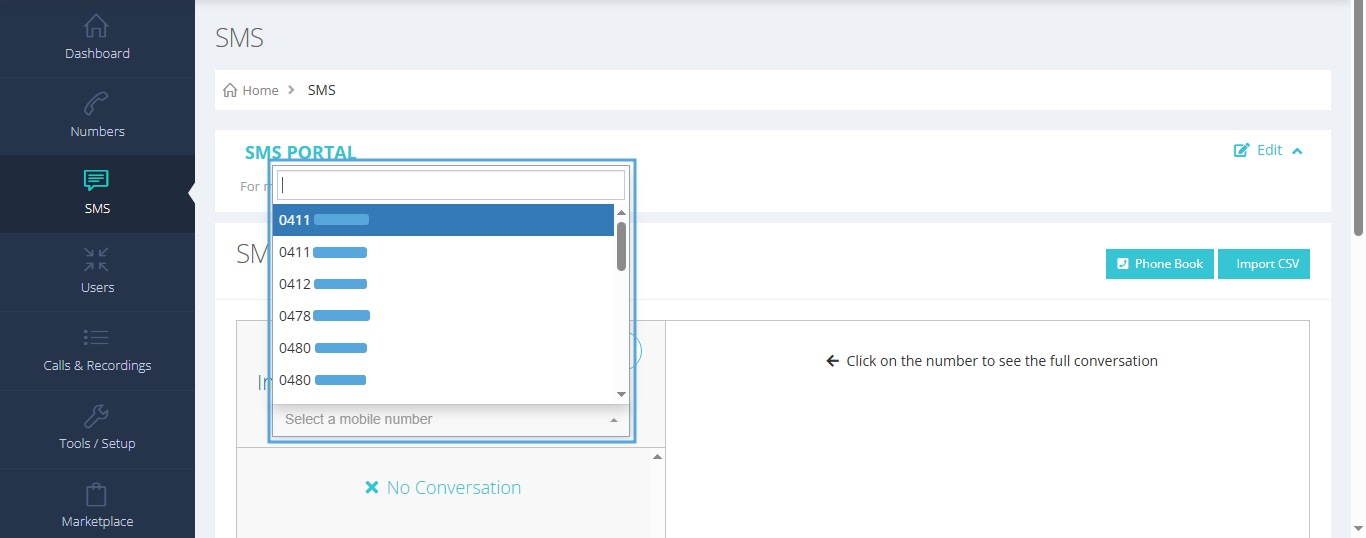
In the Dropdown under the “Inbox”, choose a mobile number to use for your Pipedrive user.
Step 3:
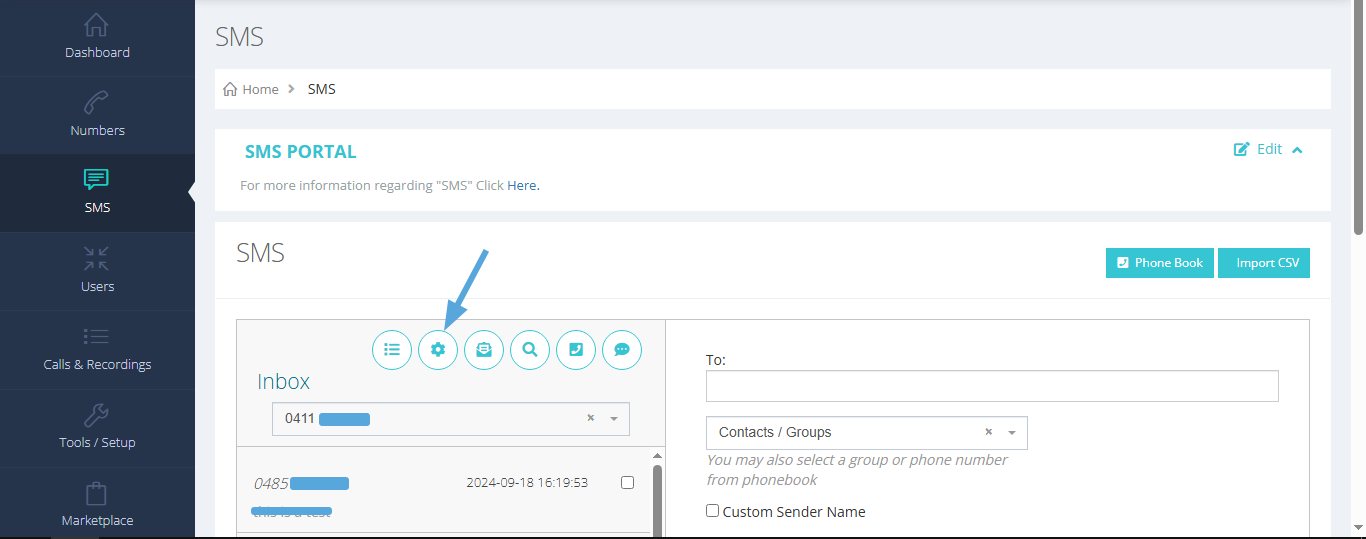
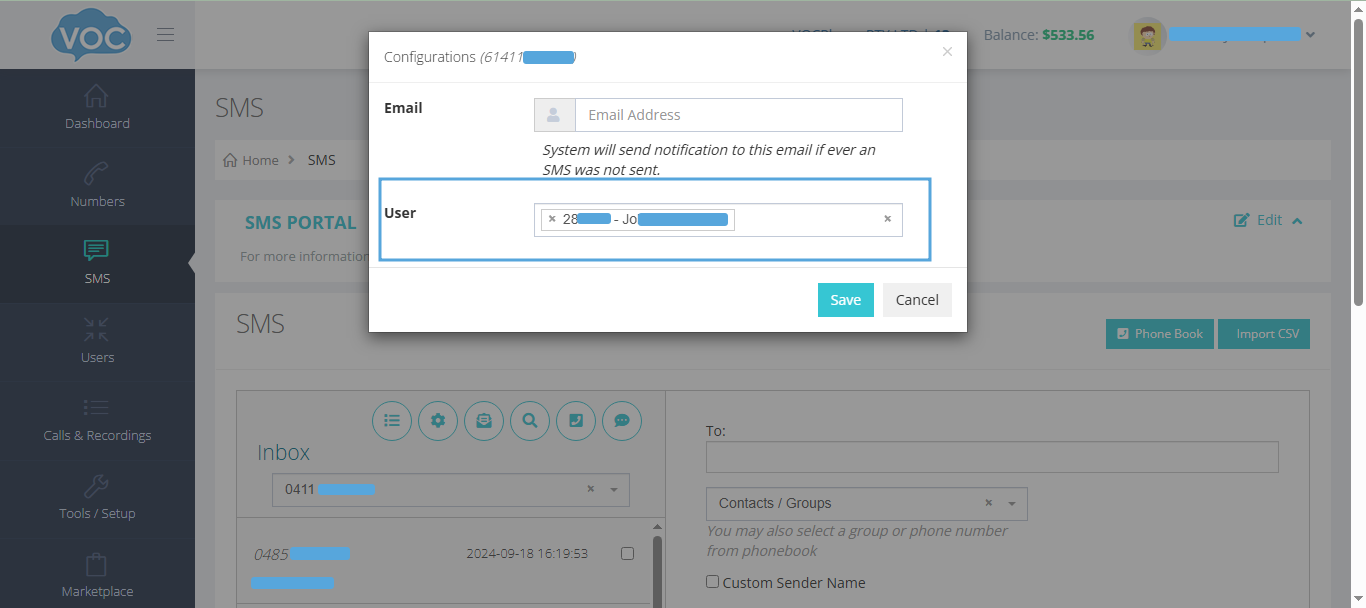
Click the Cog/Gear icon then Add the VOC User that you assigned your Pipedrive user in the dialer setup and Click Save.
¶ Troubleshooting
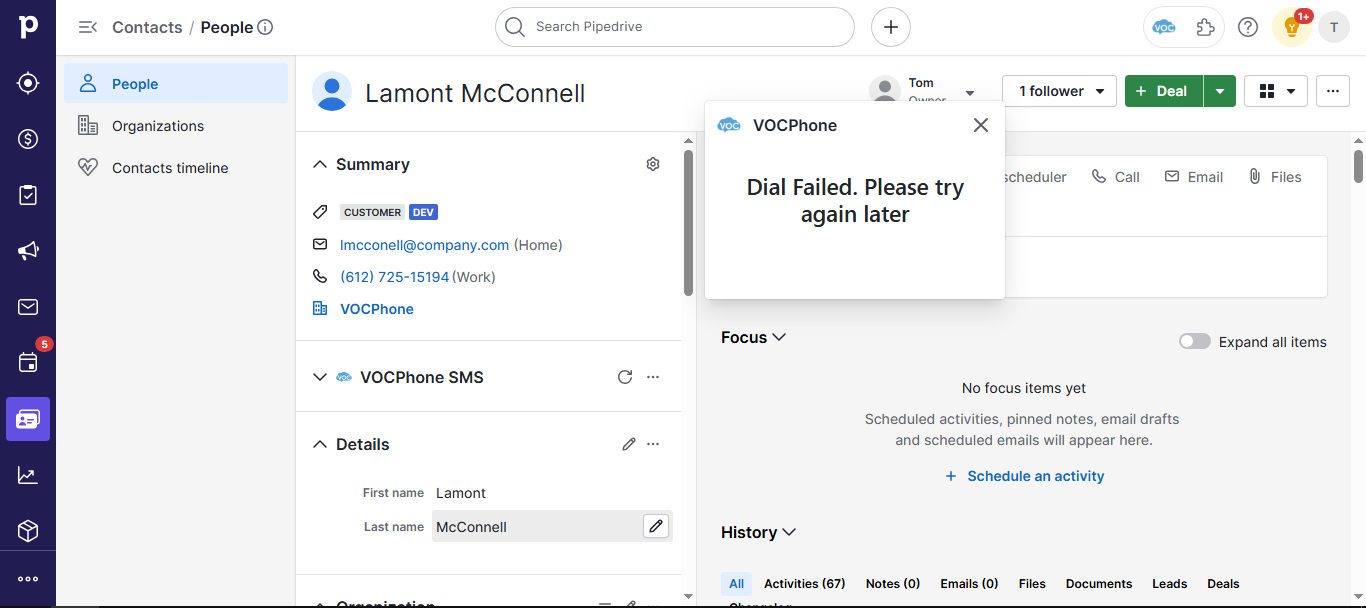
“Dial Failed. Please try again later”
This error most likely indicates that your Pipedrive user is not assigned to a VOC user/extension. Please refer to the Click to Dial setup, once you completed the setup, try again. If the message still persists, our network might be in maintenance or contact support@vocphone.com for assistance.
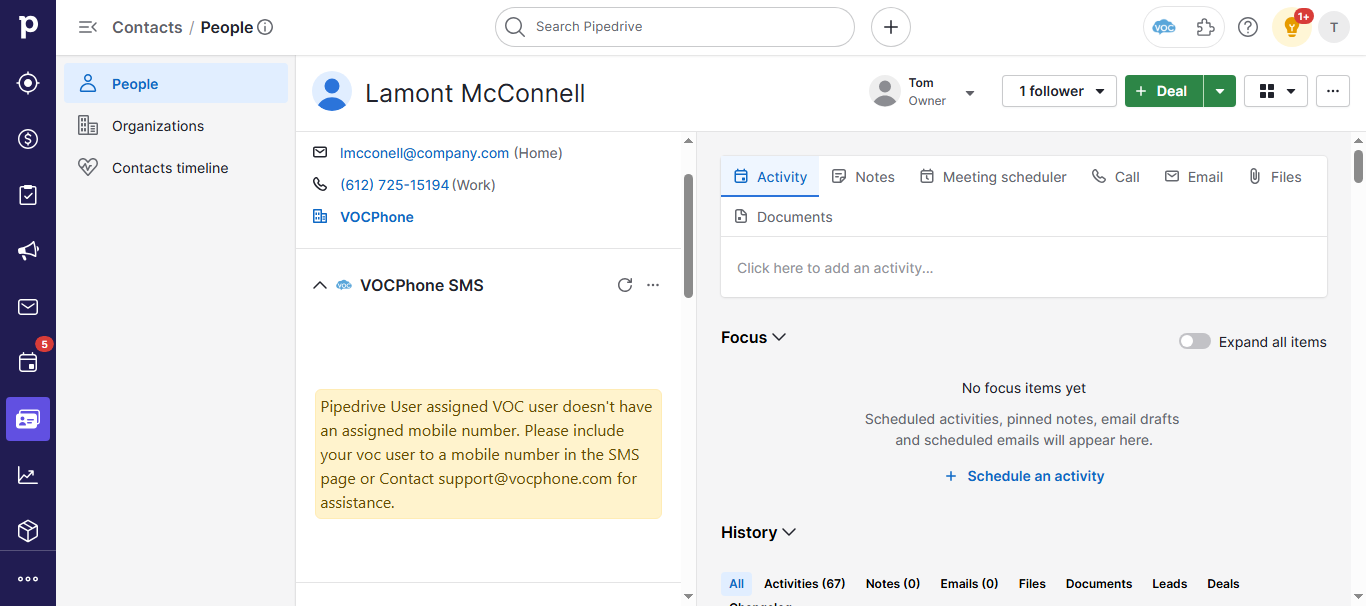
SMS: No Assigned Mobile Number
If you see the message just like in the screenshot, please complete the VOCPhone SMS Setup then reload the page or the panel. If the message still persists, our network might be in maintenance or contact support@vocphone.com for assistance.
¶ Uninstallation
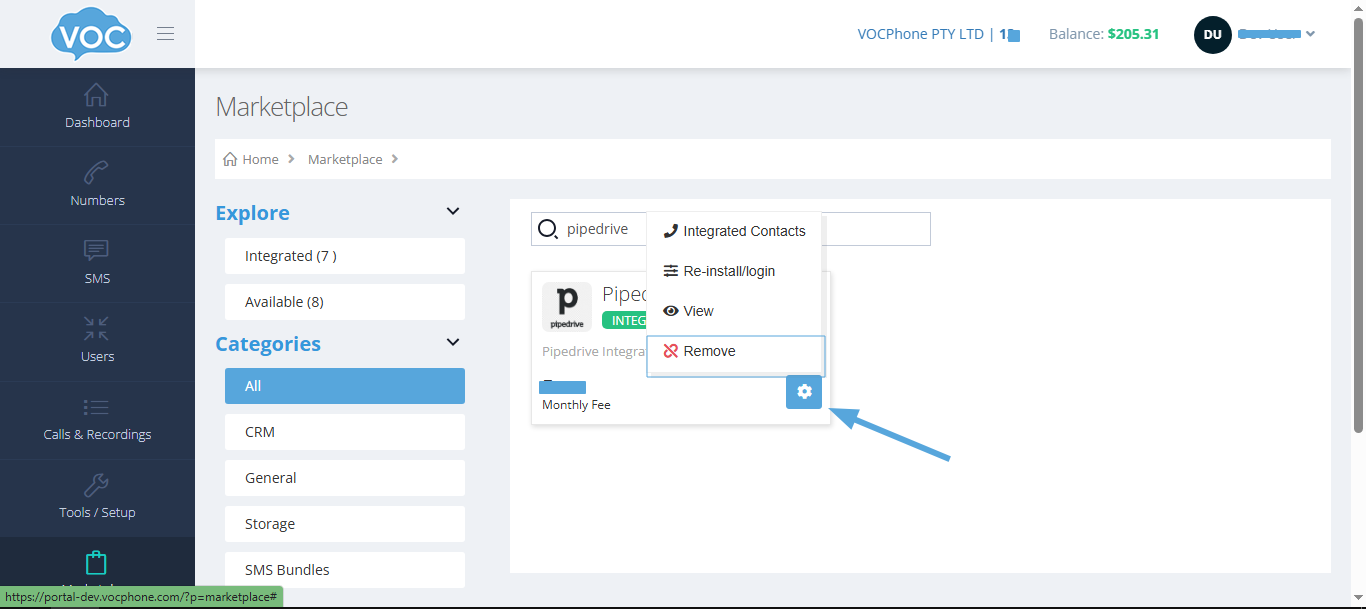
To uninstall the integration, Go to Marketplace and search for Pipedrive. Click the cog/gear button then click Remove.