¶ VOCPhone Desktop App User Guide
Welcome to the VOCPhone Desktop App. Our platform is cross-compatible, offering a seamless communication experience across multiple devices.
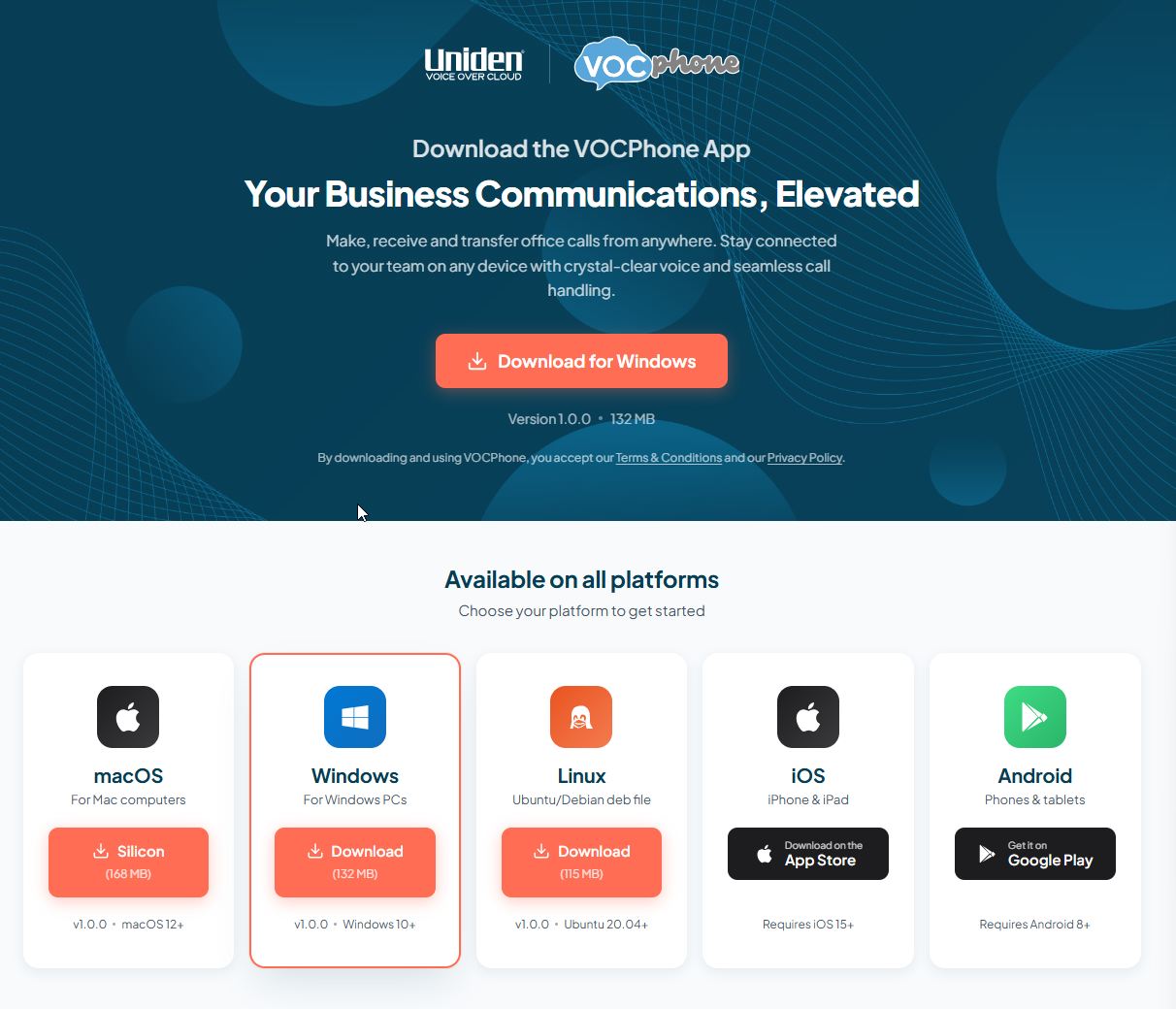
Quick Link: Download VOCPhone Apps
Interface Overview
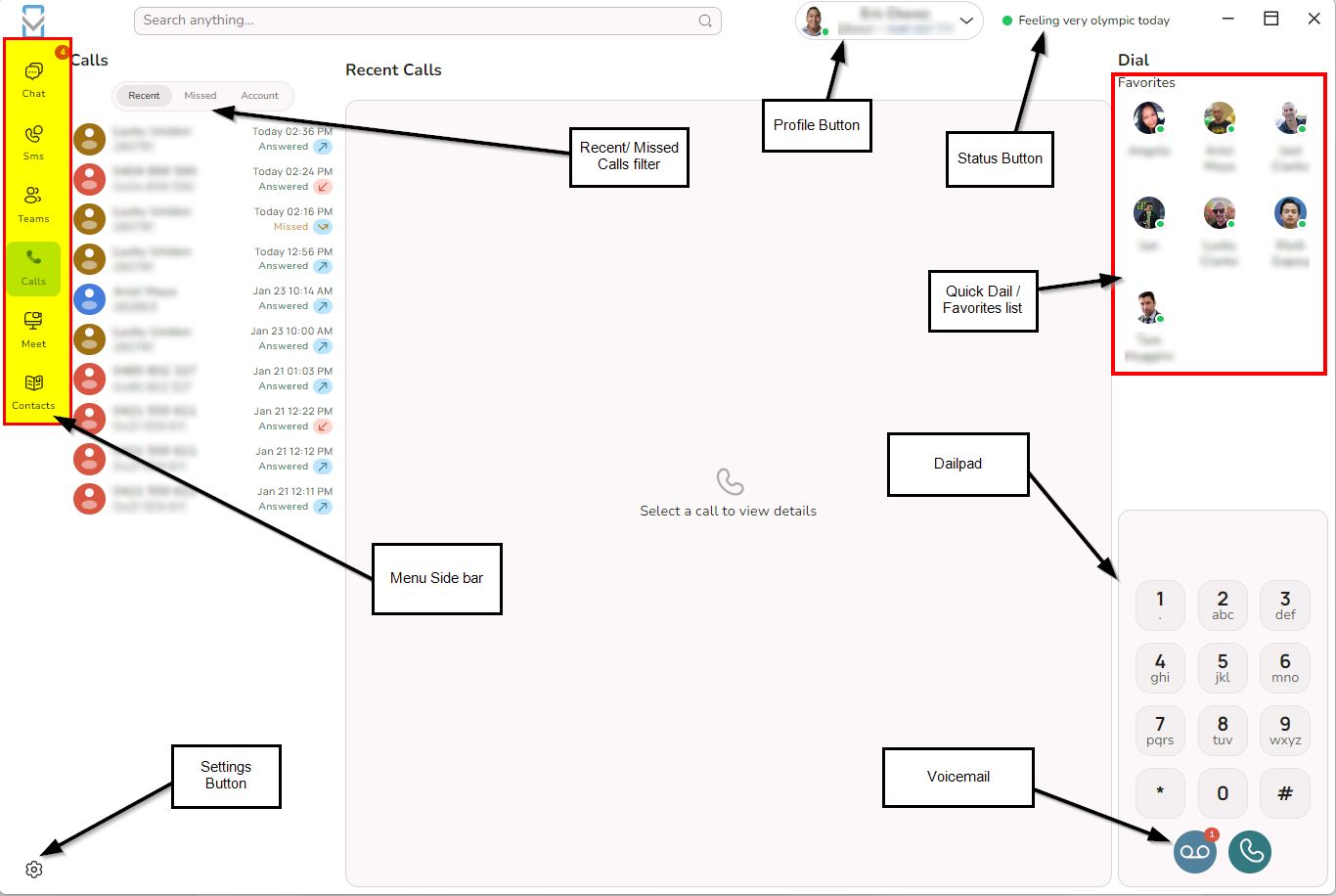
The left sidebar is your command center for all primary features:
Chat: Secure direct and group messaging.
SMS: Business texting via your VOCPhone numbers.
Calls: Access your dialpad, call history, and recordings.
Teams: View real-time colleague availability.
Contacts: Your organization and personal directory.
Meet: Launch or join video conferences.
Our app is now compatible for many platforms and Mobile devices.
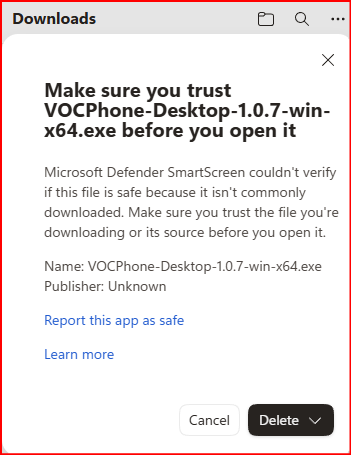
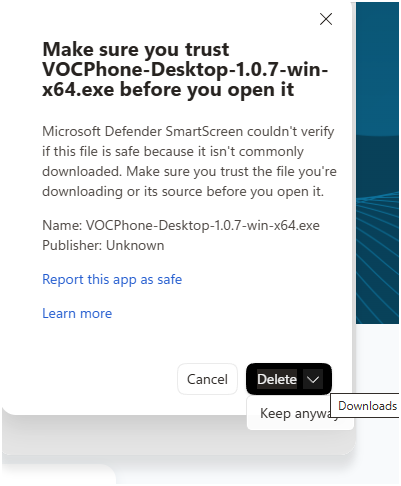
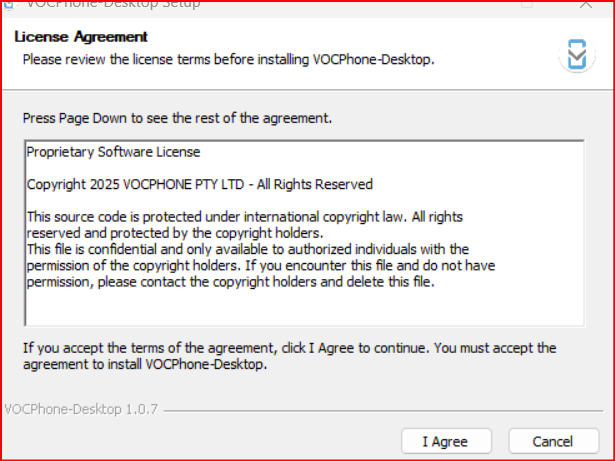


🏁 Getting Started
Welcome to our fresh look to the Desktop App for both customers VOCPhone and Uniden Voice Over Cloud.
How to Sign In
Create a User: An admin must create a Phone User within your Customer Portal using a valid email address.
Set Caller ID: ⚠️ Important: The phone user must have a Caller ID set in the portal, otherwise sign-in will fail.
Launch & Enter Email: Open the installed PC App and enter your registered email address.
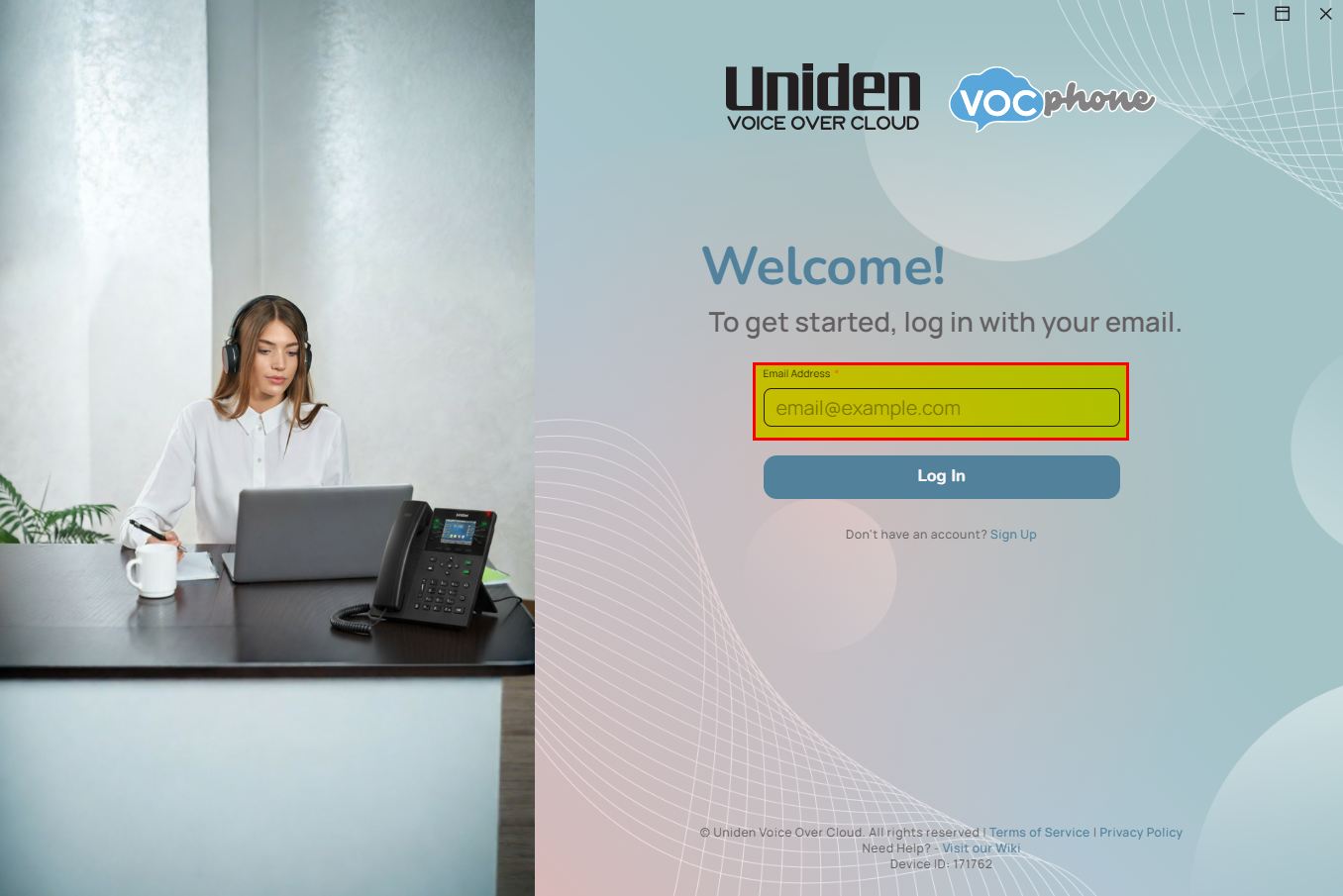
Email Verification: A login link will be sent to your inbox. Click the button in the email to automatically authenticate and open the app in your browser/desktop.
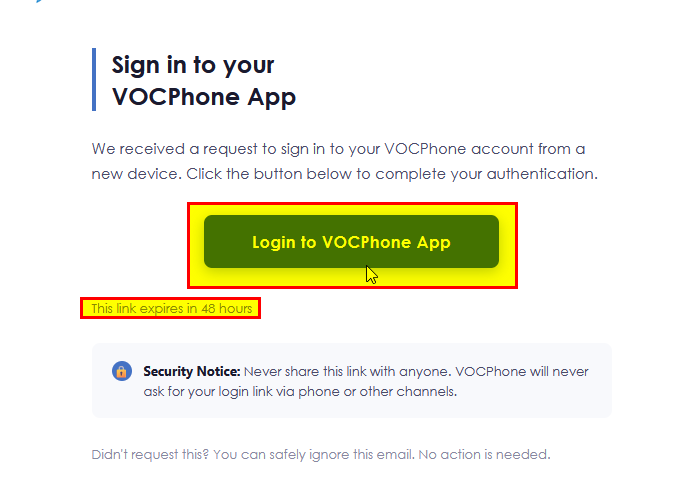
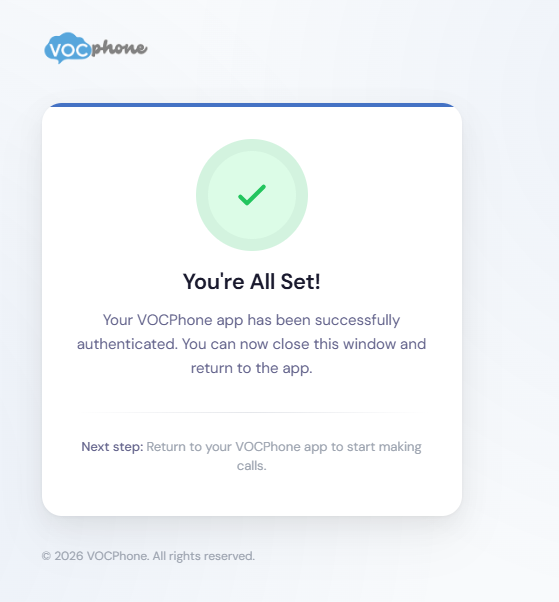
Clicking on the button will open up your we browser and the Signing confirmation will be completed.
Get to know the Layout
Once you sign into your account. you will be greeted with a fresh new look. The new menu's are much like our mobile app.
¶ 🟢 User Status & Availability
Manage how you appear to colleagues via the Status Indicator in the top header.
¶ Status Types
| Status | Icon Color | Description |
|---|---|---|
| Online | Green | Available and ready for contact. |
| Away | Yellow | Temporarily away from the desk. |
| Busy / DND | Red | Occupied; notifications may be suppressed. |
| On Call | Blue | System-automated status when on an active call. |
¶ Advanced Status Features
Custom Status: Set a specific message (e.g., "In Lunch Break") with an emoji.
Status Expiration: Set your status to clear automatically after a set duration (30 mins, End of Day, etc.).
Automatic Sync: The app automatically switches your status to Ringing or On Call when you handle phone traffic.
¶ 💬 Chat & Messaging
The chat feature uses secure end-to-end messaging for internal collaboration.
Starting Chats: Use the search bar to find a colleague for a Direct Chat or use the "Create a Group Chat" button for project-based rooms.
Messaging Tools:
Mentions: Use @name to notify specific users.
Rich Media: Share images, videos, and documents directly.
In-App Viewers: Preview PDFs, Spreadsheets, and Code files without downloading.
Search: Press Ctrl+F (Windows) or Cmd+F (Mac) within any chat to search the conversation history.
Drafts: Unsent messages are saved automatically if you switch conversations.
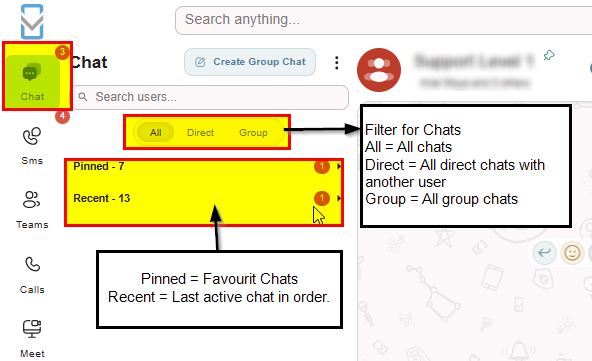
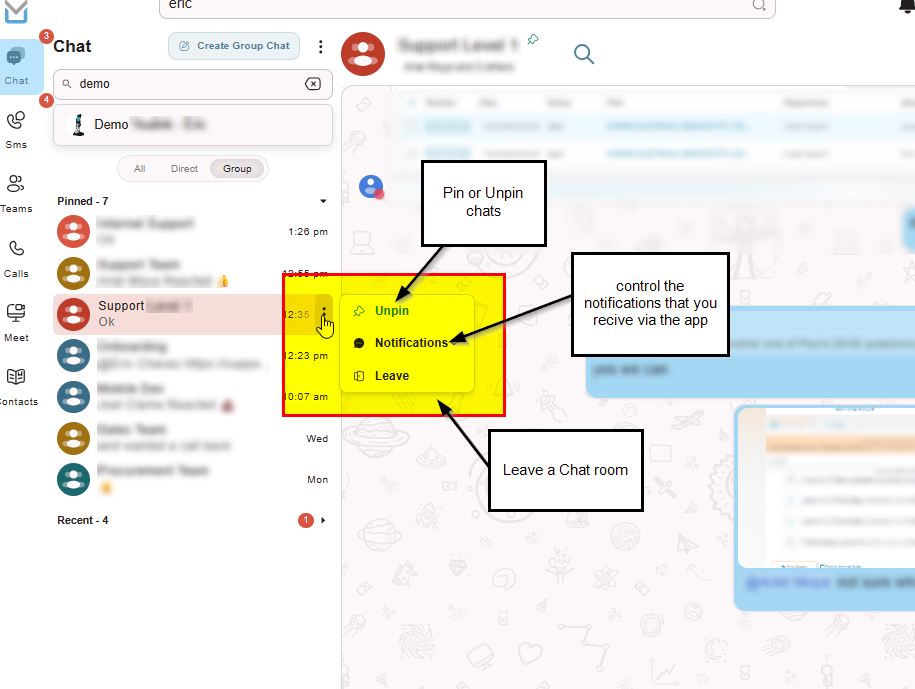
Managing Notifications or Chat rooms.
on the side of each room or direct chat you will see a menu button of 3 dots.
When you click on this you will see that you can either Pin/Unpin the chat to your favorites list.
you can also choose to leave the room if required.
another handy feature is manage the notifications for each room that you are apart of. This option allows you to mange alerts when ever you are mentioned within a thread or overall.
Mentions are used using the @ symbol to tag someone. this will send the notification of that person to their device.
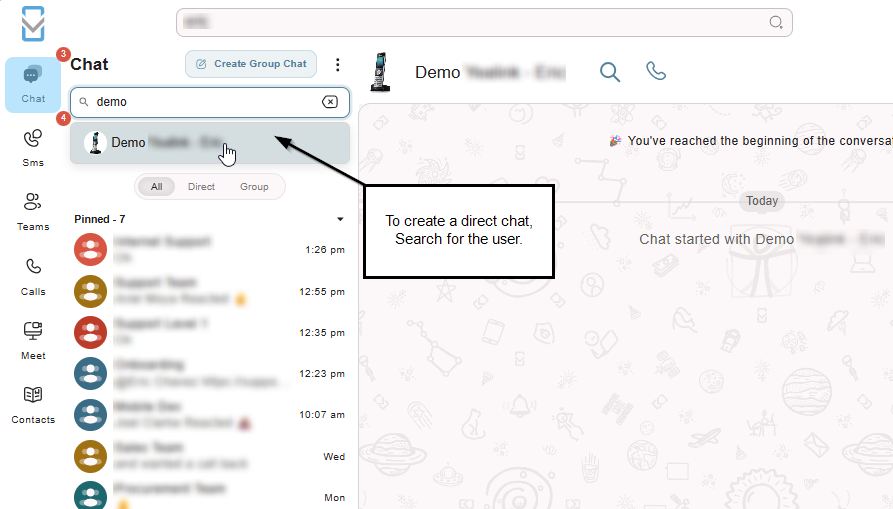
Direct Chat
This chat will be a chat directly shared with 1 user, to create a direct chat simply search the user you would like to start chatting with and click on their name.
This will then automatically create a chat room for you.
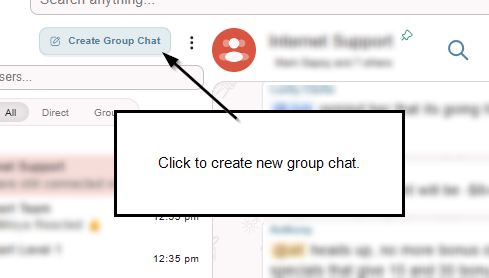
Group Chat Feature
This feature will allow you to create rooms which are either department or team based groups. The person who then create the room will automatically be the moderator of that room and will only be able to add and remove people from the chat.
To create a room Click on “Creating a Group Chat” Button
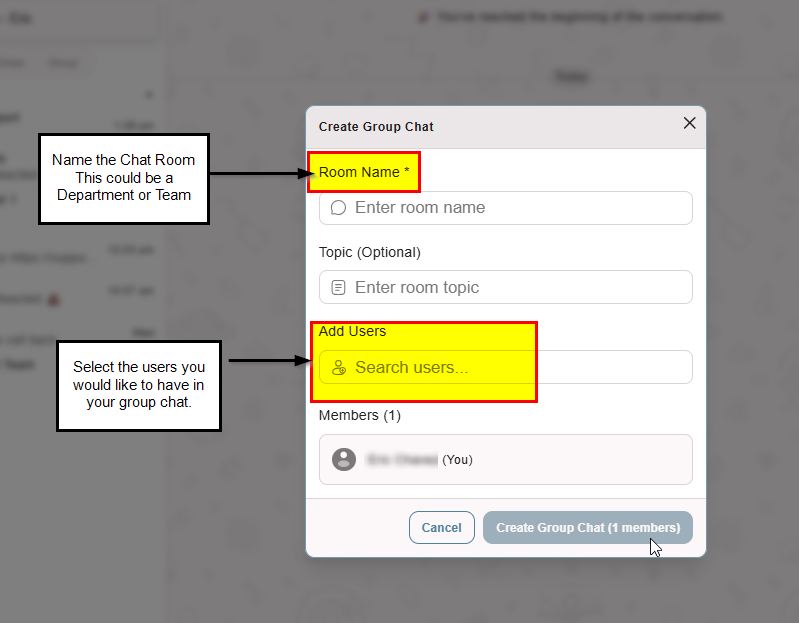
Complete the form to create your group chat and add the users that you would like to have within the chat room.
¶ ✉️ SMS Features
The new feature will allow you view all your SMSs for every number or sender ID that the user has been given access to.
Send and receive text messages using your professional business numbers.
Access: Permissions for specific numbers or "Sender IDs" must be granted by an admin in the Customer Portal.
Organization: Use the Service Number Tabs to filter messages by specific lines (e.g., Support vs. Sales).
Character Count: Standard SMS is 160 characters. Longer messages will be concatenated and billed as multiple units.
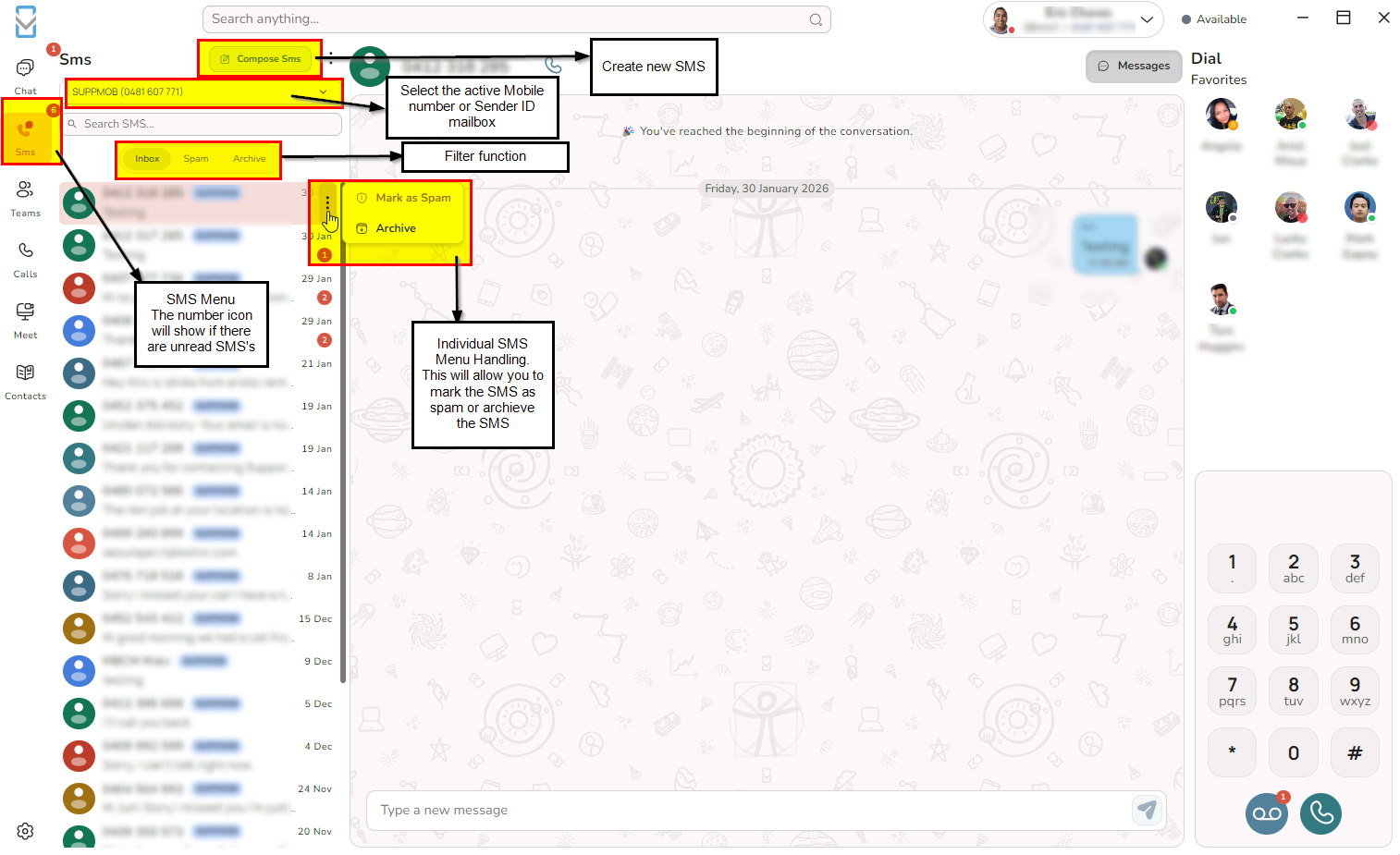
How to send an SMS
Click on "Compose SMS" to create a new SMS.
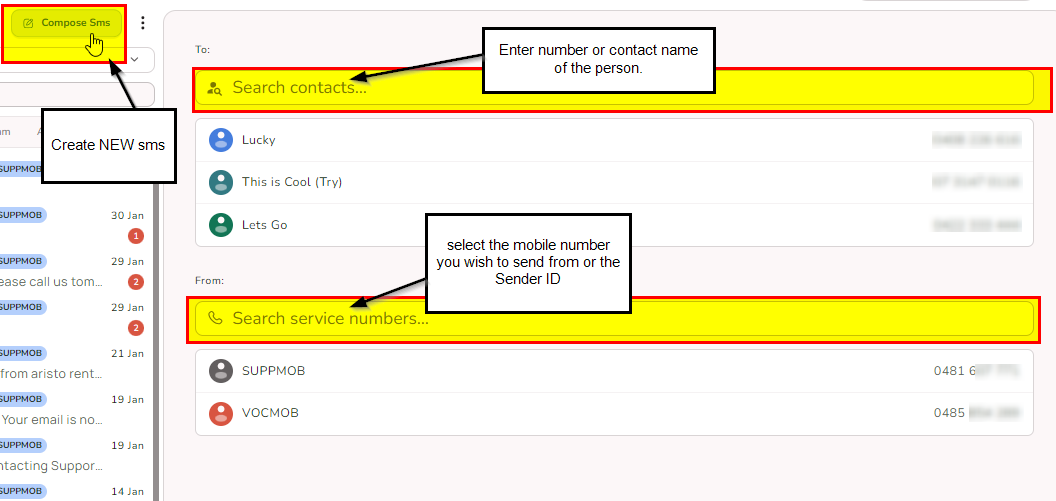
Search or type in the phone number of the receiver that you want to send the SMS too and select the mobile number or sender ID you wish to use.
Please note that all SMSs chargers are subject to the length. One (1) SMS is 160 characters
Tags
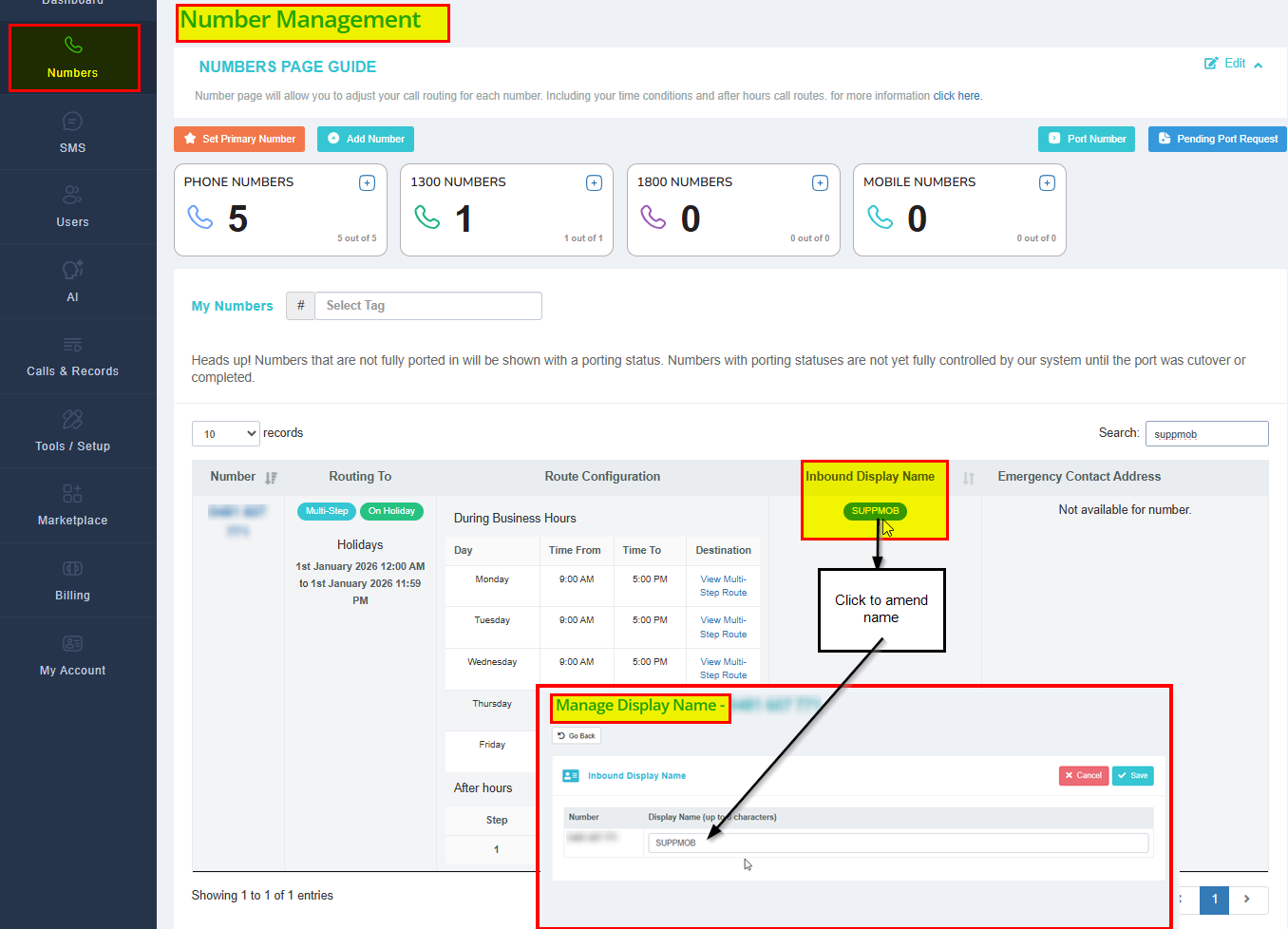
The Display Name/ Tags that are found on the list of SMSs.
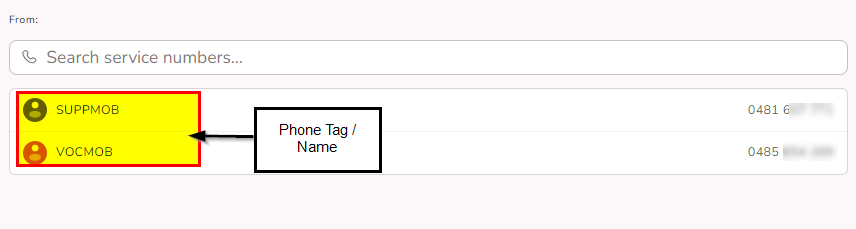
The TAGS will display next to the SMS number, this is so that you can name the numbers to the appropriate use.
EXAMPLE: shows to two tags that are SUPMOB and VOCMOB this helps identify the department that the SMS is for.
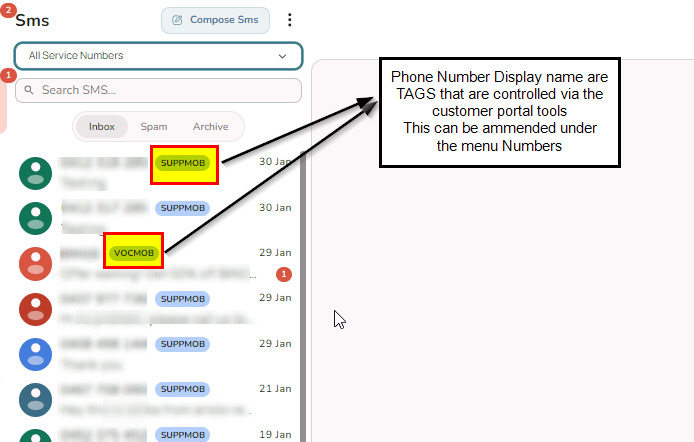
You can also click on the All Service Numbers and narrow down to that one specific tag/display name. Much like a filter
To manage Display Name/ Tags they are controlled by the display name of the number within your Customer Portal. (https://portal.vocphone.com/?p=numbers)
¶ Team Feature
¶ Teams (Presence)
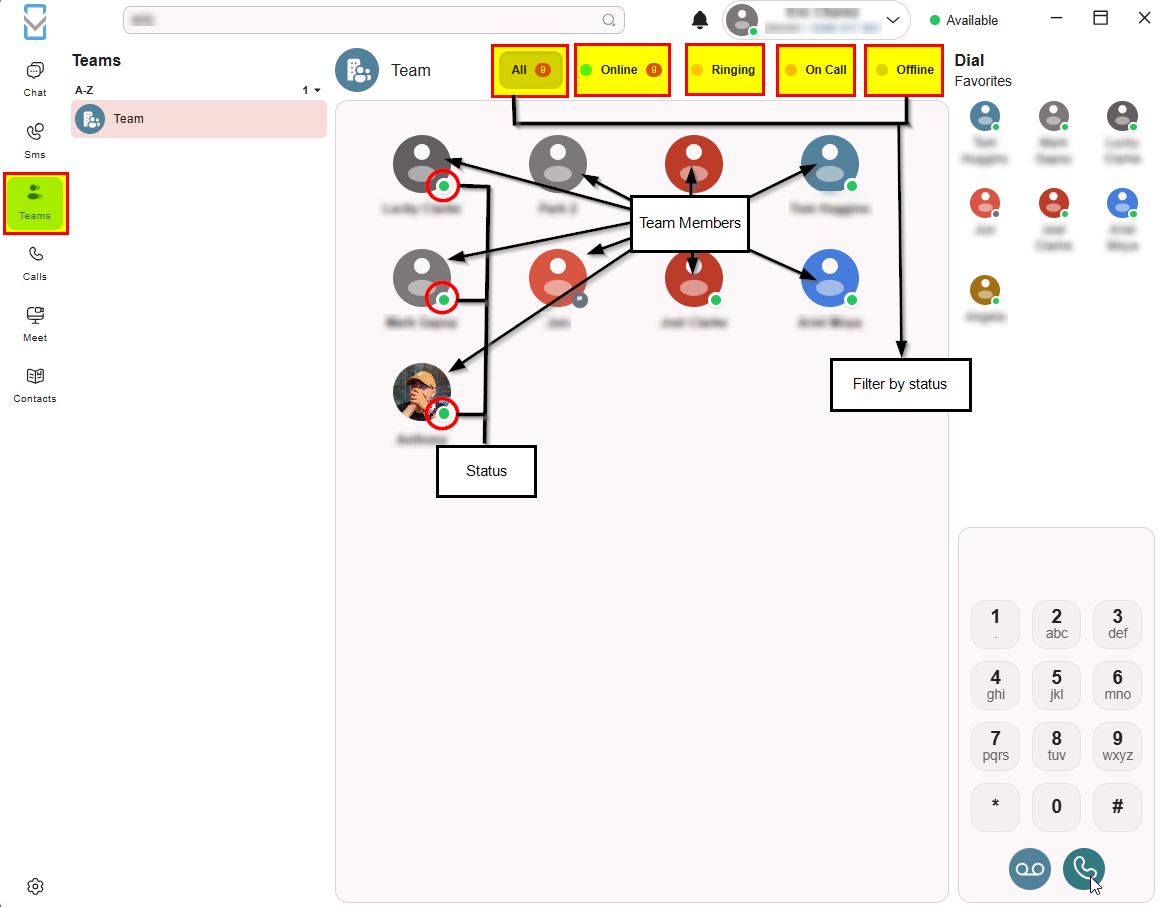
The Teams tab allows you to see the "Live" state of your company. You can see who is currently Ringing or On Call, allowing you to time your internal transfers or queries perfectly.
¶ Contacts Directory
Team: Internal extensions.
Account: Shared company-wide contacts.
External: Your private, manually added contacts.
Favorites: Star your most-contacted people for quick access.
You will also be able to tell who is online and offline along with which team member is on a call.
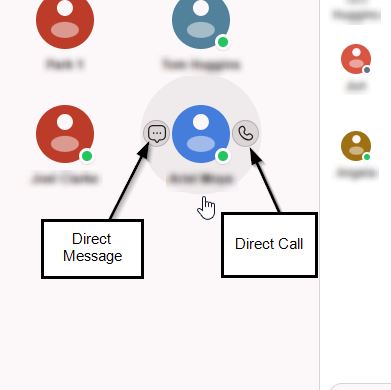
When clicking on the user you are after two shortcut keys will appear. as per the screenshot below.
¶ 📞 Calling Features
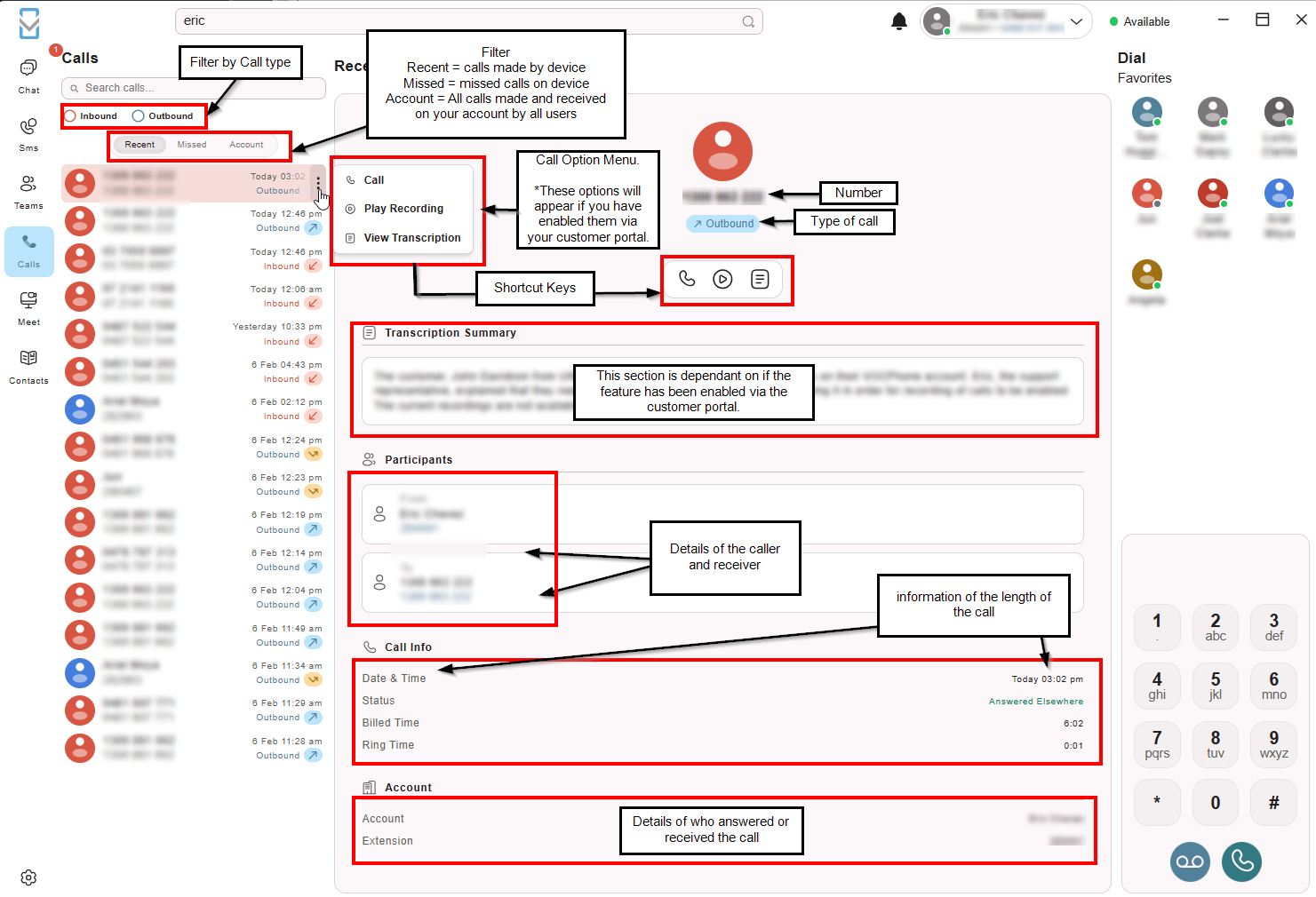
The Calls page is a robust hub for all telephony activity.
¶ Call History
Recent: Device-specific history.
Account: Universal history across all your logged-in devices.
Recordings & Transcripts: Playback audio or read AI-generated summaries directly from the call log.
¶ In-Call Controls
While on a call, you can:
Mute / Hold / Keypad: Standard call management.
Transfer: Perform a Blind Transfer (immediate) or an Attended Transfer (speak to the recipient before connecting).
Multi-Call: Manage two simultaneous calls; answering a second call automatically places the first on hold.
Please review the below screenshot to help you understand the navigation through the calls menu.
¶ Meet (Video Conferencing)
Collaborate face-to-face with internal and external participants.
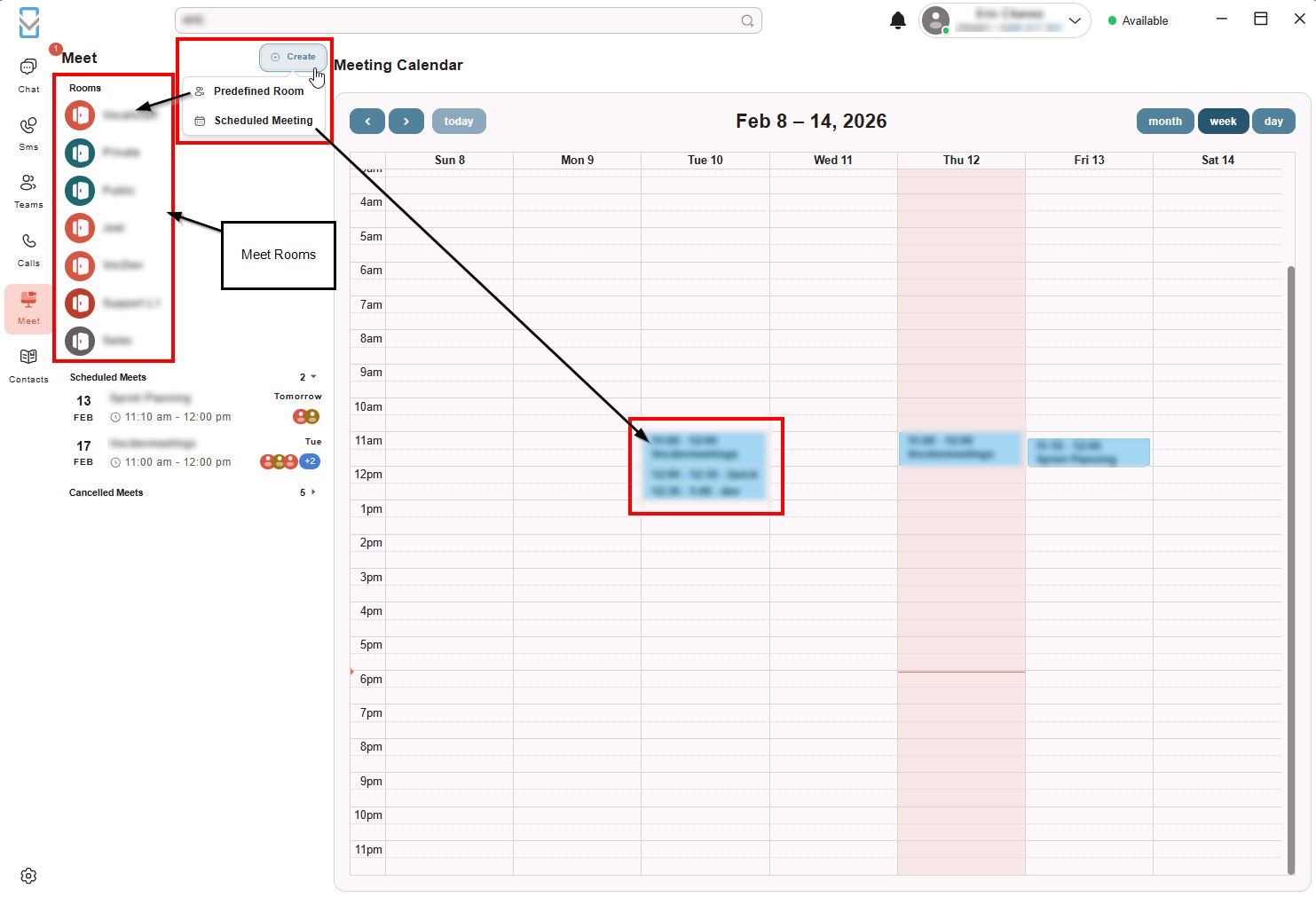
Instant vs. Scheduled: Start a meeting immediately or schedule one for later with email invitations.
Meeting Rooms: Create "always-open" rooms for recurring team huddles.
Audio Priority: If you receive a phone call while in a meeting, the meeting audio will automatically mute to prioritize the call and restore once the call ends.
Click on Create and select scheduled meeting
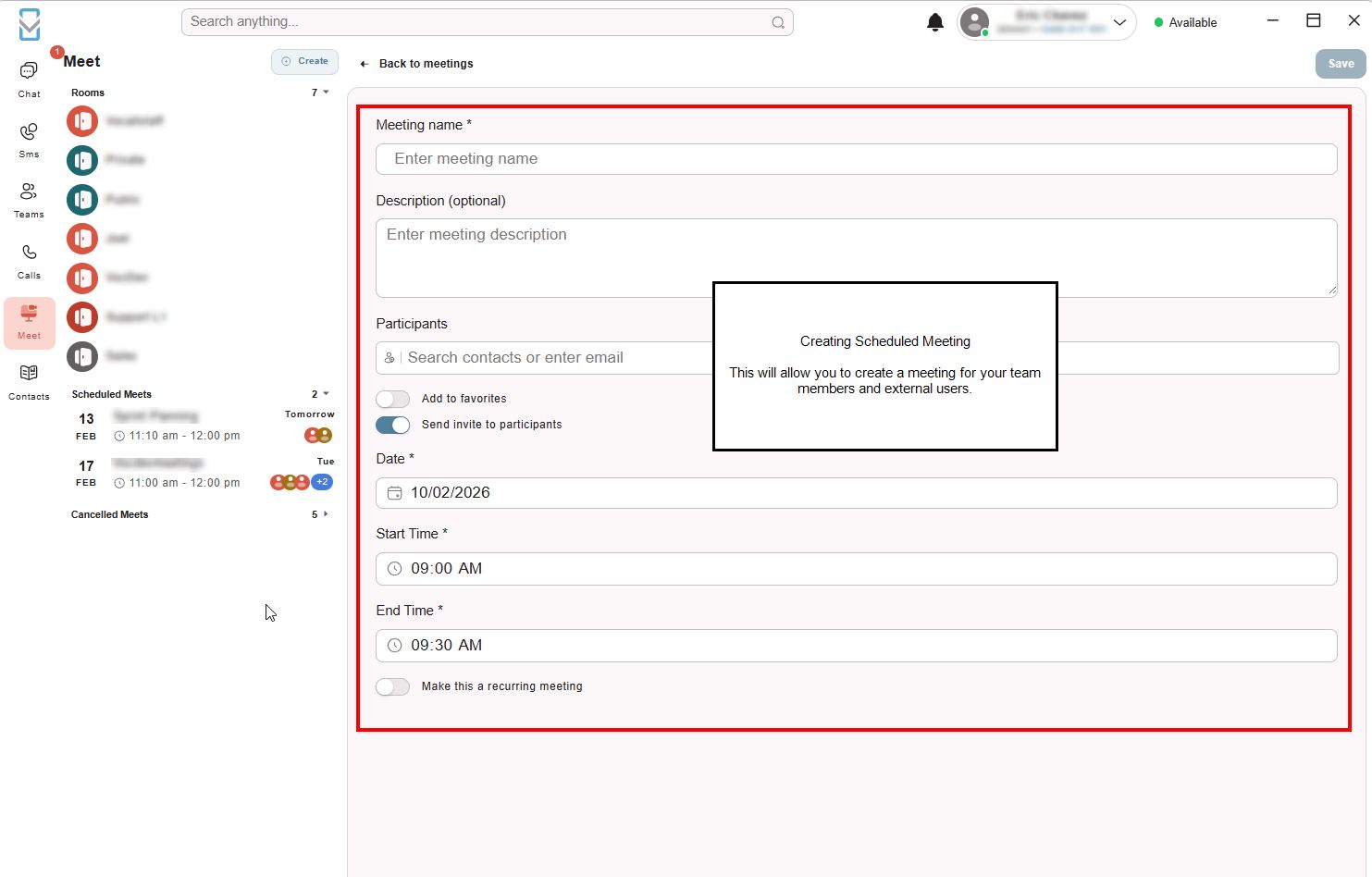
Complete the form for the meeting and add those that you wish to attend.
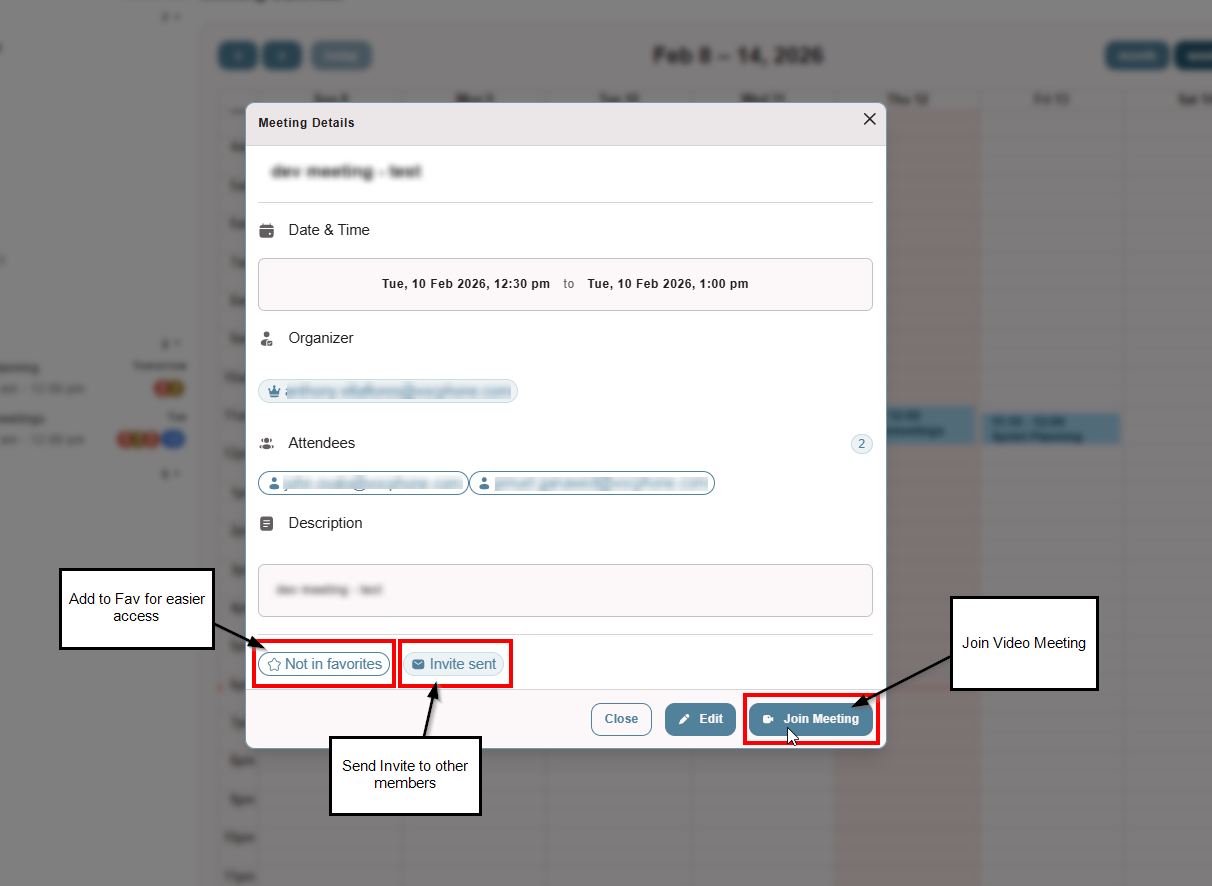
Once booked you will be able to view this within the calendar and also Join Meeting when it comes time to attend.
¶ Settings & Hardware
Click the Gear Icon to optimize your experience.
Audio/Video: Select your specific headset, microphone, and camera. Use the Ringtone Device setting to play rings through your PC speakers while keeping call audio in your headset.
Headset Integration: The app supports HID commands—use your headset buttons to Answer, Hang Up, Mute, or Hold.
Connectivity: The app features Automatic Reconnection. If your PC wakes from sleep or switches Wi-Fi networks, VOCPhone will automatically re-establish your SIP and Chat connections.
Pro Tip: Keep your app updated! Check the Update Settings section to ensure you are running the latest Stable release for the best performance.

Troubleshooting & FAQ
If you encounter issues with connectivity, audio, or signing in, refer to these common solutions.
¶ 🔑 Login & Access Issues
I didn’t receive my login email. What should I do?
Check Spam: Look in your Junk or Spam folders for an email from VOCPhone.
Verify Portal Settings: Ensure your admin has created your user with the exact email address you are typing.
Caller ID Requirement: Sign-in will fail if your user profile does not have a Caller ID assigned in the Customer Portal.
The login link in my email expired.
Login links are time-sensitive for security. Simply go back to the app, enter your email again, and a fresh link will be sent immediately.
¶ 🎤 Audio & Video Issues
People can't hear me, or I can't hear them.
Go to Settings > Audio Settings.
Ensure the correct Microphone and Speaker are selected from the dropdown menus.
Click Test Audio to verify your speakers are working.
Check if your headset is physically muted or if the app’s Mute button is active during a call.
My headset buttons (Answer/Hang up) aren't working.
Ensure your headset is plugged in before launching the app.
Some headsets require "HID" permissions; check your computer's security settings to ensure the VOCPhone app has permission to access USB peripherals.
¶ 💬 Messaging & SMS
I can't see the SMS tab or a specific phone number.
Admin Permissions: SMS access is handled per number. An admin must go to the Customer Portal > Numbers and assign your user to that specific Service Number or Sender ID.
Why was my SMS split into two messages?
Standard SMS has a limit of 160 characters. If you use special characters (like emojis) or exceed the limit, the carrier splits the message, which may result in multiple charges.
¶ 🖥️ App Behavior
How do I stop the app from popping up over my work?
Go to Settings > General Settings and toggle off Keep call windows on top.
You can also manage notification pop-ups in the Notification Settings section.
The app is lagging or acting slow.
Check Settings > Update Settings to see if an update is pending. Keeping the app on the Stable channel is recommended for most users.
If the issue persists, try a "Hard Refresh" by restarting the application.
Ensure no VPN services are enabled
Still need help? > Contact your internal IT administrator or visit the VOCPhone Support Portal for further technical assistance.
Archived Documents
How-to-SETUP-Windows-PC-app
How-to-place-Windows-PC-App-on-DND-mode
How-to-Transfer-call
How-to-add-contacts
How-to-change-ringtone