¶ Overview
Yealink phones are not a premium supported product, however they work nicely in the network, here is information about using them on the platform.
¶ Provisioning Settings
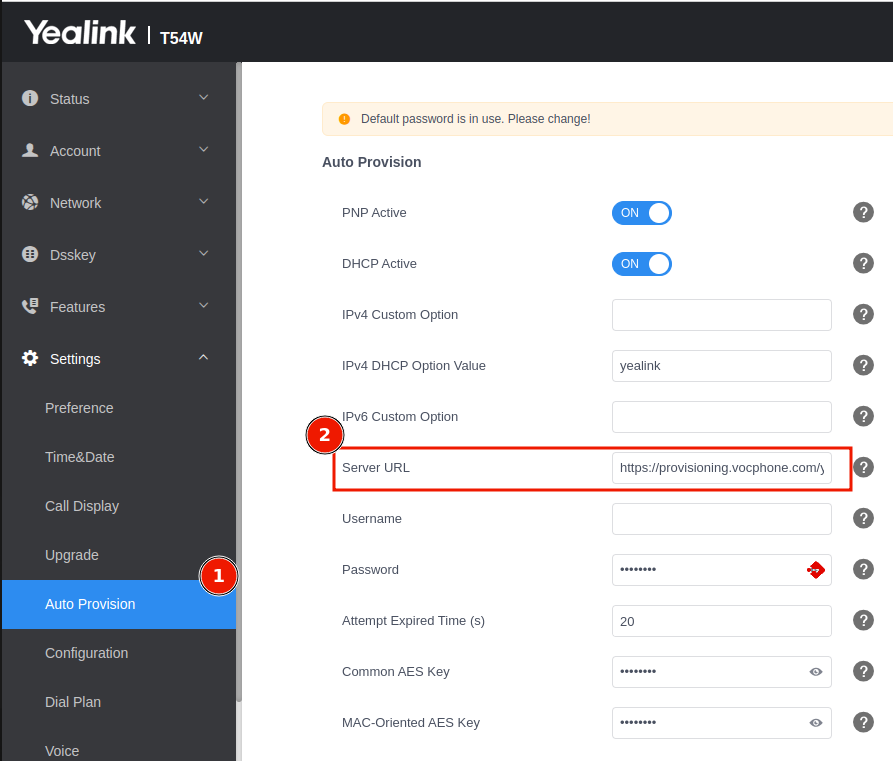
Log into yealink phone via browser
Obtain IP address from menu.
- Menu > Status > IPV4
- Enter IP Address within browswer URL
- Settings > Auto Provsion
- Servier URL Set the Auto Provision > Server URL: http://provisioning.vocphone.com/yealink
- Press AUTO Provision
¶ DHCP Settings
If you want to auto provision all yealink phones on your network you can add the following DHCP Option to your router and it will automatically provision on the network, if they have been setup in the portal
DHCP Option 66 = http://provisioning.vocphone.com/yealink
¶ Get IP Address of Phone
¶ For Yealink Desk Phones (T3x, T4x, T5x, etc.)
For most standard Yealink desk phones, you can find the IP address by following these simple steps:
Ensure the phone is idle (not on a call or in a menu).
- Press the OK button on the phone's keypad.
- The IP address (labeled as IPv4) will display on the screen.
¶ For Yealink DECT Cordless Phones (W52P, W60P, W80, etc.)
For cordless systems, the IP address is associated with the base station, not the individual handset.
¶ Method 1: From a registered handset
- On the handset, press the OK button to open the main menu.
- Navigate to the Status icon.
- Select the Base option.
- The base station's IPv4 address will be displayed on the handset screen.
¶ Method 2: By pressing the base station button
- Ensure the base station is operational (the LEDs should be green).
- Press the physical button on the base station itself.
- The registered handset(s) will ring and display the base station's IP address on the screen.
¶ Cordless Handsets
¶ Working Devices
Here is a list of devices that should work out of the box on the platform, if you are wanting to work with another model, please contact support
- SIP-T21
- SIP-T22
- SIP-T28
- SIP-T53
- SIP-T41P
- SIP-T42
- SIP-T46
- SIP-T48
- SIP-T46S
- SIP-T54W
- SIP-T57W
- MP56
- W52P
- W60B
- W70B
¶ Auto Provisioning Phones
We have the ability to auto provision Yealink Phones, the devices available can be found here
Yealink Auto Provision Devices and Firmware
If you have a supported phone, however it isn't provisioning please ensure you have the correct firmware version as mentioned in the Yealink document.
To get Yealink Firmware see below
¶ Manually set provisioning ( Older Phones )
Yealink Old Firmware Auto Provisioning
¶ Factory Reset
To factory reset a Yealink phone, you can use the phone's keypad by pressing and holding the OK button for about 5-10 seconds until a prompt appears, then confirm the reset. Another method is to use the phone's web interface by finding the IP address, logging in, and navigating to the "Reset to Factory Settings" option in the settings or upgrade menu.